
The Task Search Page allows you to manage tasks across all transactions from one central location. From this page, you can search and filter tasks, create custom views, group or sort results, and complete task actions without opening individual transactions. This page is designed to help teams organize daily workflows, monitor task progress, and quickly access task-related information across the system.
TABLE OF CONTENTS
Accessing the Page & Common Uses
You’ll find the Search page in the left-hand navigation menu. This opens a dashboard-style view of all your tasks with customizable search tabs at the top and a list of your task data below.

Open in AFrame: https://www.aframeonline.com/afs/app/r/search-tasks
Common Uses:
- View upcoming or overdue tasks
- Monitor tasks assigned to specific team members
- Create saved task views for daily workflows
- Group and sort tasks by status, due date, transaction, or assignee
- Complete task actions directly from the page
Customizing Searches
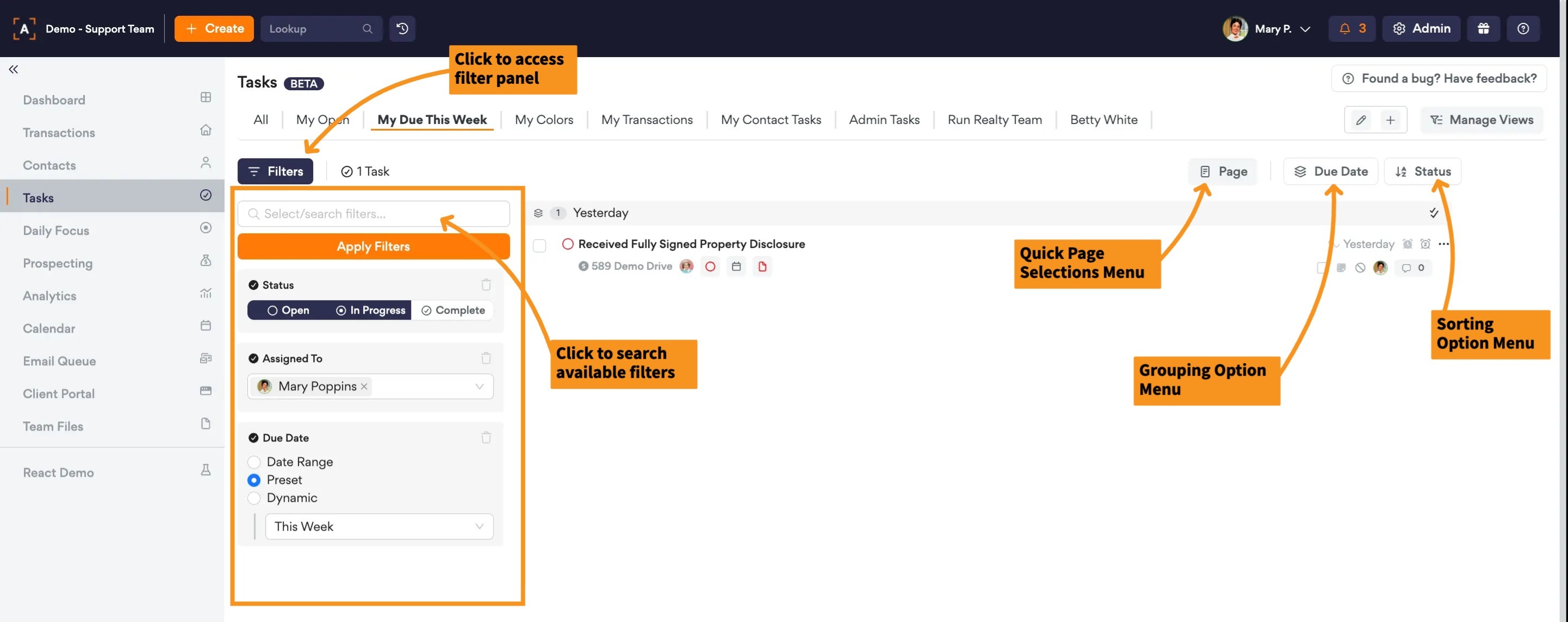
Filters
Filters help you quickly narrow down the tasks listed on the page so you can focus on what matters most to you. You can use a single filter or combine multiple filters to build more specific task views based on your workflow needs.
Common Filters Include:
- Due dates, including dynamic date ranges
- Task status
- Assigned user
- Transaction details
- Task type
- And so much more...
Grouping & Sorting
Grouping and sorting help you organize how tasks are displayed on the Task Search Page. You can use them together to quickly structure and prioritize your task list.
Grouping lets you organize tasks into sections such as assigned user, due date, transaction, or status. Sorting controls the order tasks appear in the list, such as by due date or status.
Views
At the top of the page, you’ll see a set of tabs—these are your views. A View is a saved search setup of your filters, sorting, and grouping on the Task Search Page. Views help you quickly return to the same task layout without rebuilding it each time, making it easier to manage repeat workflows like daily task reviews or team assignments. The All view is your default view containing all tasks in the account.
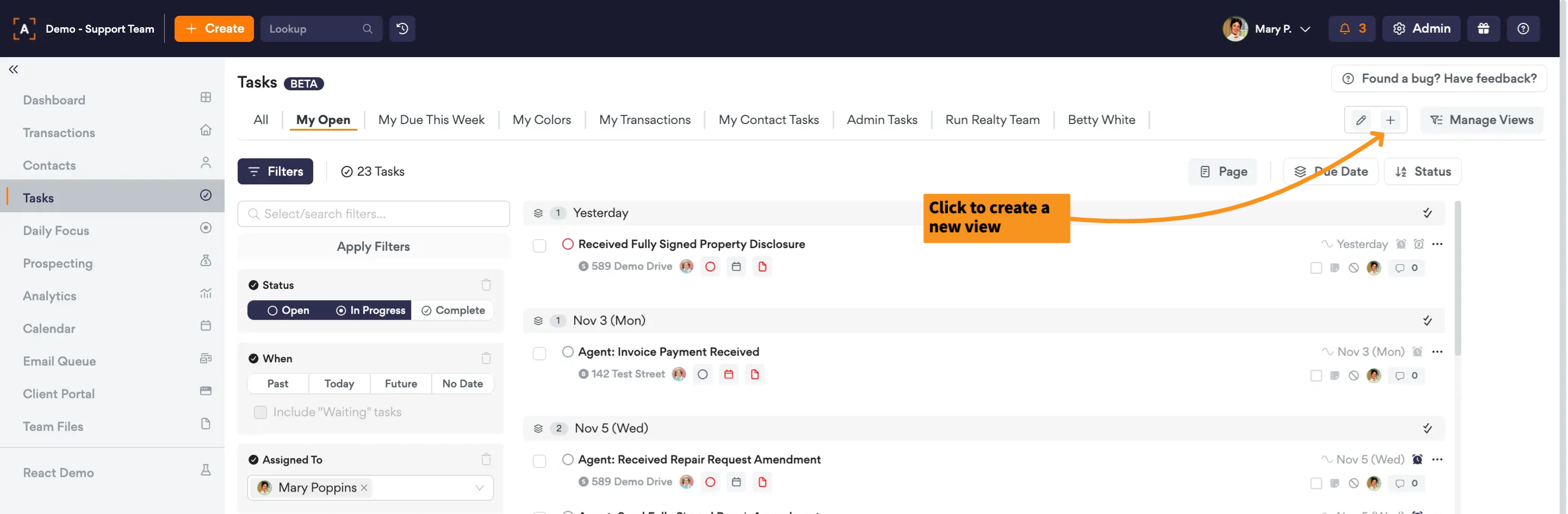
Create New Views
- Start from All view or another custom view
- Adjust Filters as needed
- Adjust Sorting & Grouping as needed
- Click the Create New View Icon (+) in the top right corner
- Name New View
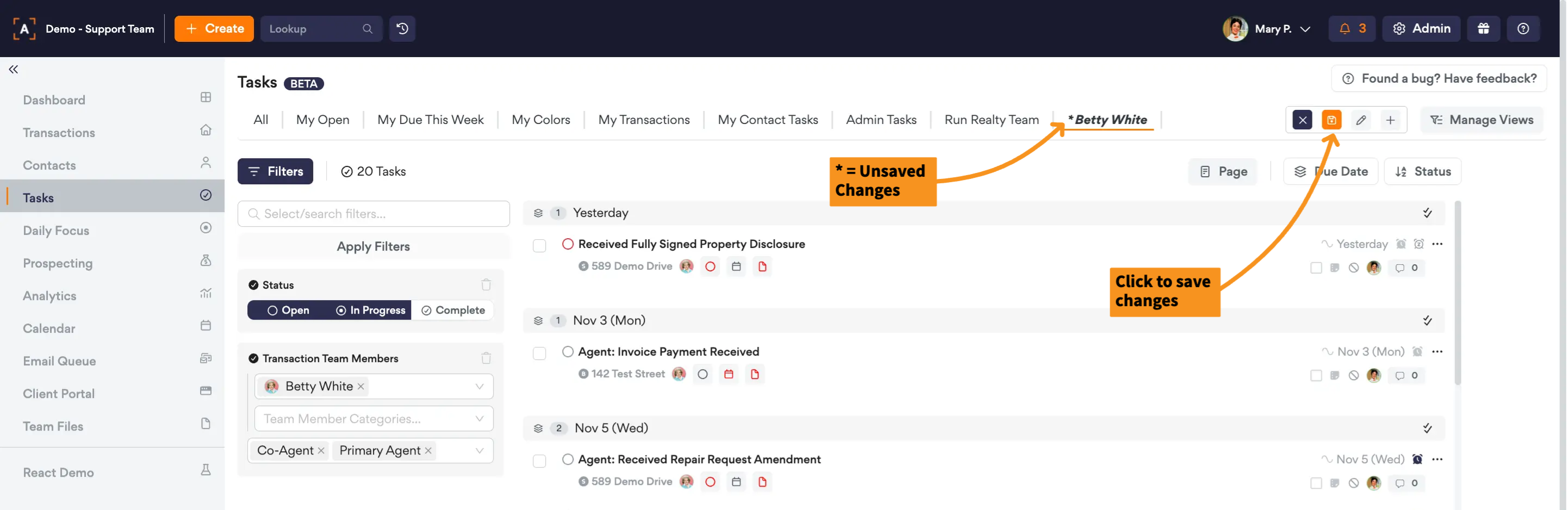
Saving Edited Views
After applying filters or customizing your view, be sure to save it to retain those changes. A * next to the view name indicates there are unsaved changes—click the Save icon to update the view with your latest settings.
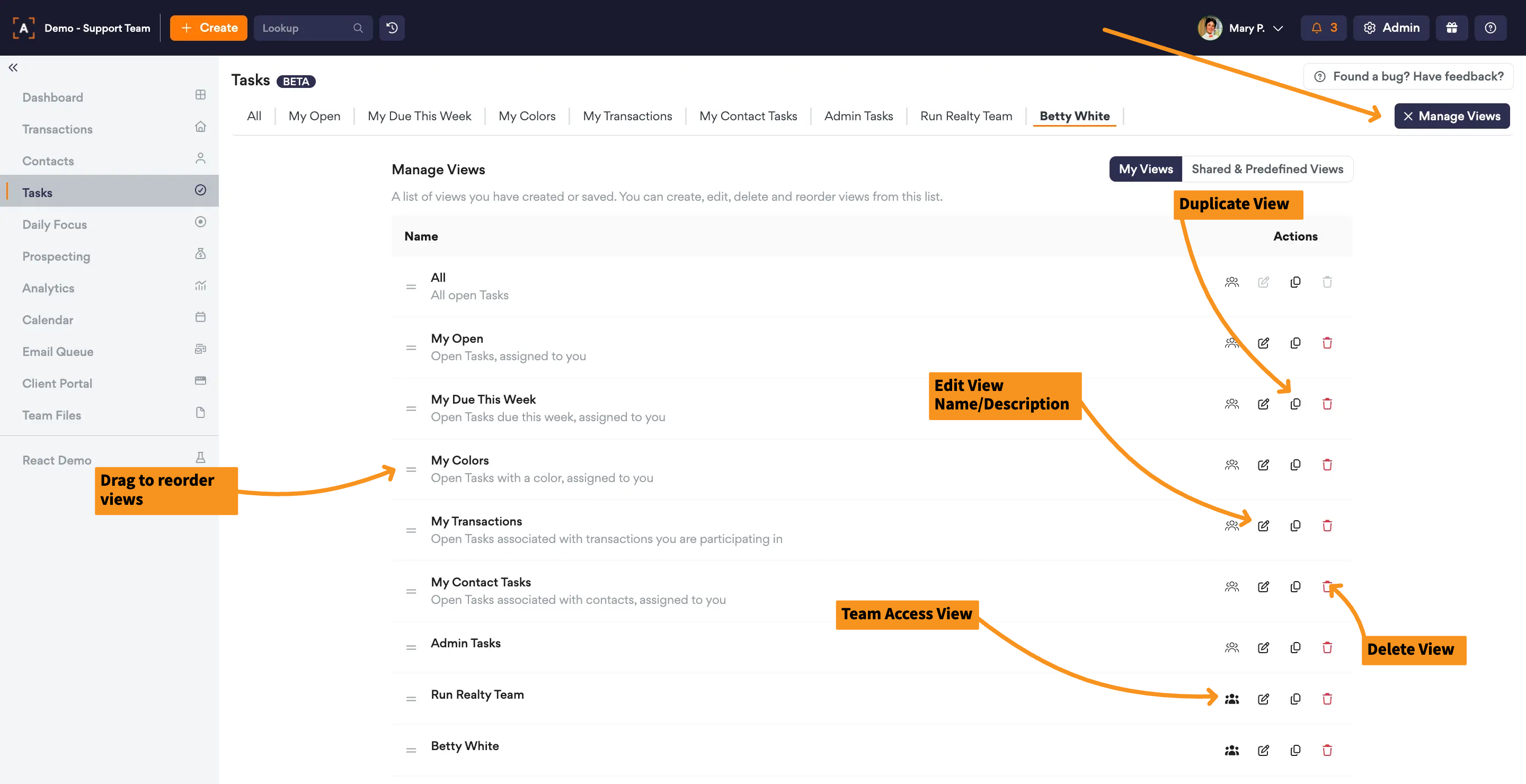
Managing Existing Views
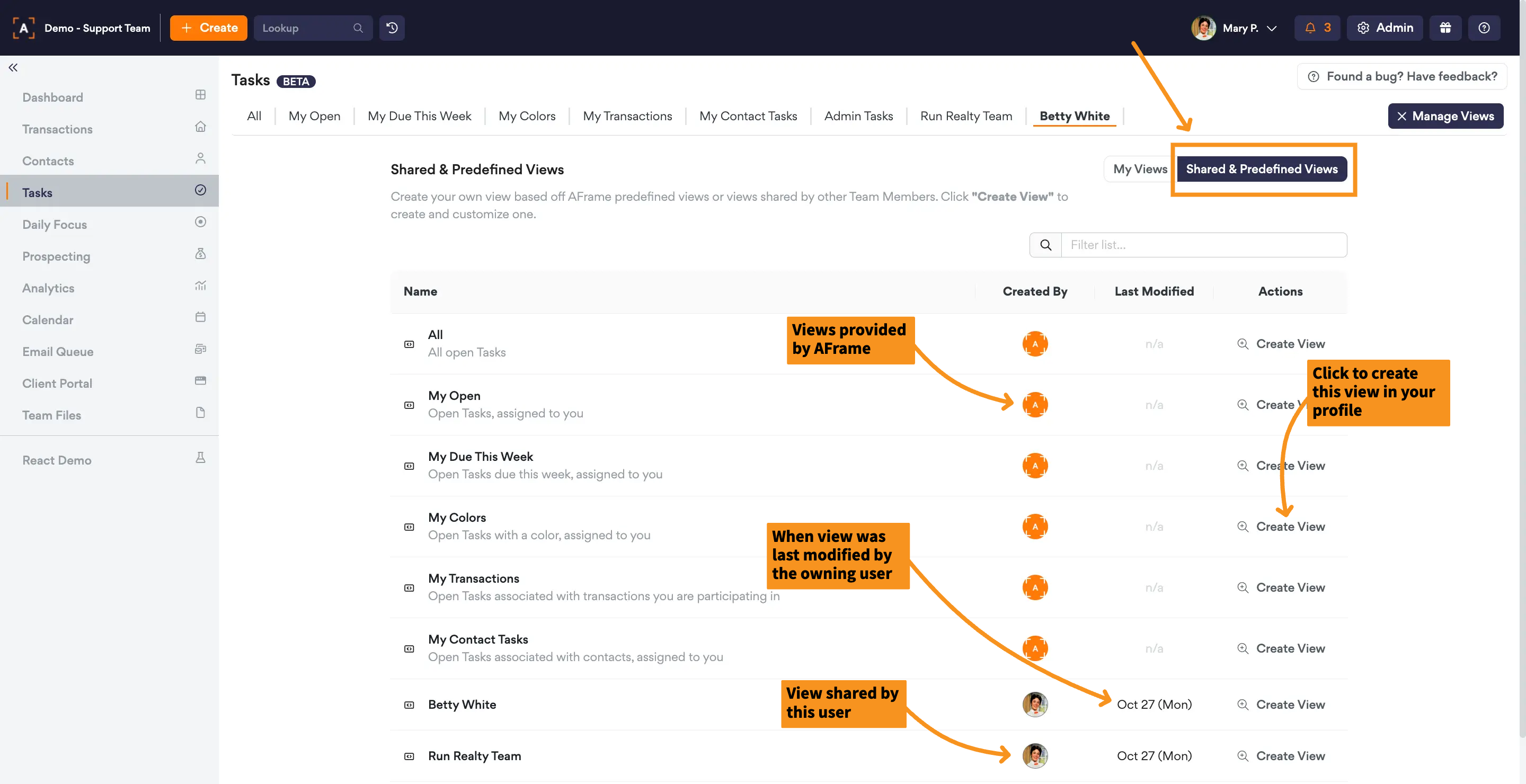
To manage your existing views, click the Manage Views button. From there, you can edit the name/description, duplicate a view, delete views, reorder them, and enable team access to share a view with standard users in your account.
Sharing Views
To access shared views, click the “Manage Views” button and switch to the Shared Views tab. Here you’ll find predefined views shared by AFrame and any views shared by other standard users in your account. Anyone can click Create View to make their own editable copy in their profile.
Managing Tasks
Actionable Drawers
The actionable drawers let you manage other tasks, dates, and attachments directly from the task search page—no need to open each transaction. Just click the icons under the task to open the drawers. If the items list is too long, use the filter icon at the top of the drawer to narrow down what’s shown.
- Tasks: Opens the task tab on the side to view or manage other related tasks in one place
- Dates: Opens the date tab on the side to view or manage transaction dates
- Attachments: Opens the attachment tab on the side to upload and manage documents

Related Articles: Task Tab, Dates Tab, Attachments Tab
Task Actions
You can manage tasks directly from the Task Search Page using quick and bulk actions. Quick actions allow you to make edits or updates to a single task at a time, while bulk actions let you select and update multiple tasks at once. These tools help you work faster and manage tasks more efficiently without opening each transaction individually.
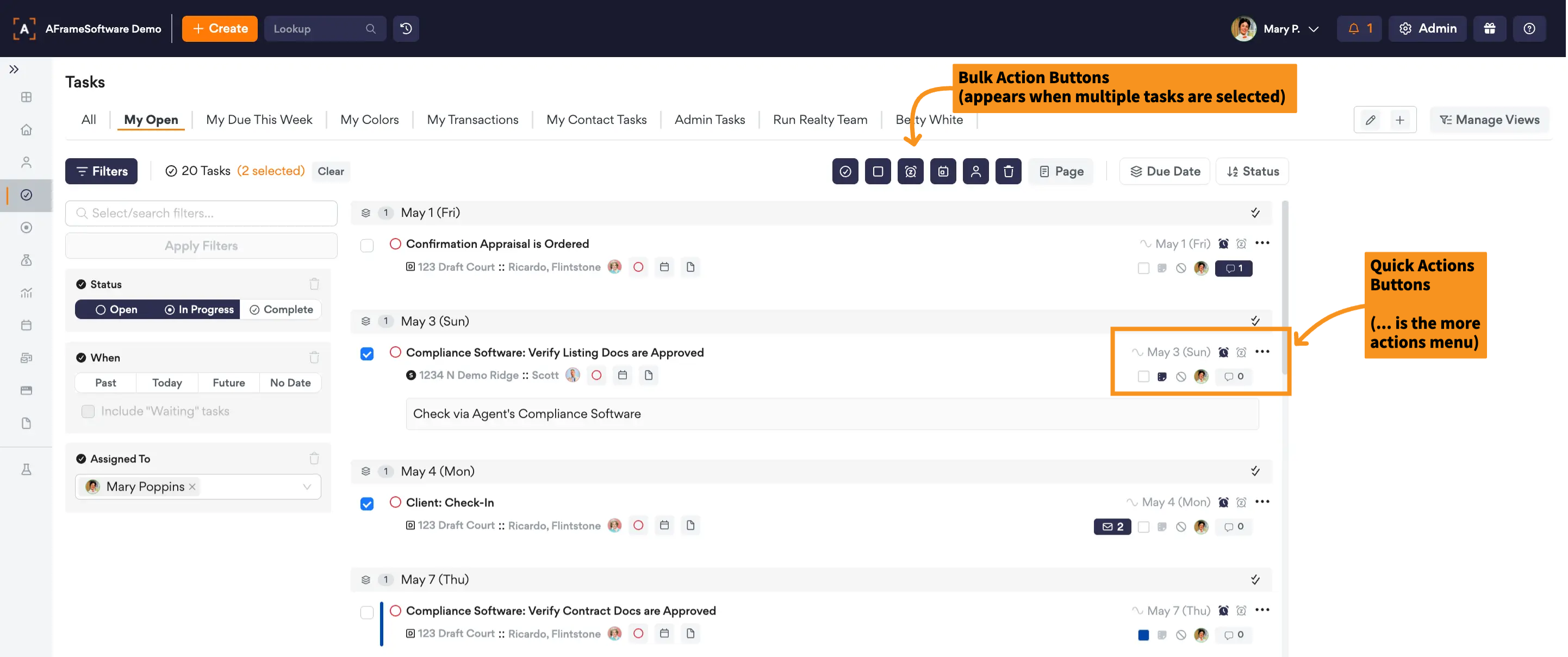
Quick Actions (located to the right of each task):
- Change the due date
- Snooze the task (right click to choose from today, tomorrow, or next week)
- View Task Details
- Colorize Tasks
- Turn on Reminders
- Write internal task notes
- Create an email from the linked email template
- Plus more with the more actions menu!
Bulk Actions (when multi selection used):
- Update Status
- Colorize
- Snooze
- Change Due Date
- Reassign to another user
- Delete or Omit