
TABLE OF CONTENTS
Common Issues
Understanding Task Area Specifics
- Dashboard Task Widget = only tasks assigned to the logged in profile
- Transaction/Contact Task Tab = all tasks within that entity
- Task Page/Daily Focus = all tasks in the account, but the filters are used to filter down the results accordingly
Task Template Setup
Check your task template to see if the tasks are assigned to the proper role needed. This will assign the tasks according to this assignment once it is applied to the transaction.
If you have more than one standard user (or possibly will), then it is best practice to not use the "current user" (the user logged in that applied the template) assignment and use a transaction role selection to assign the tasks to the users assigned to that transaction specifically.
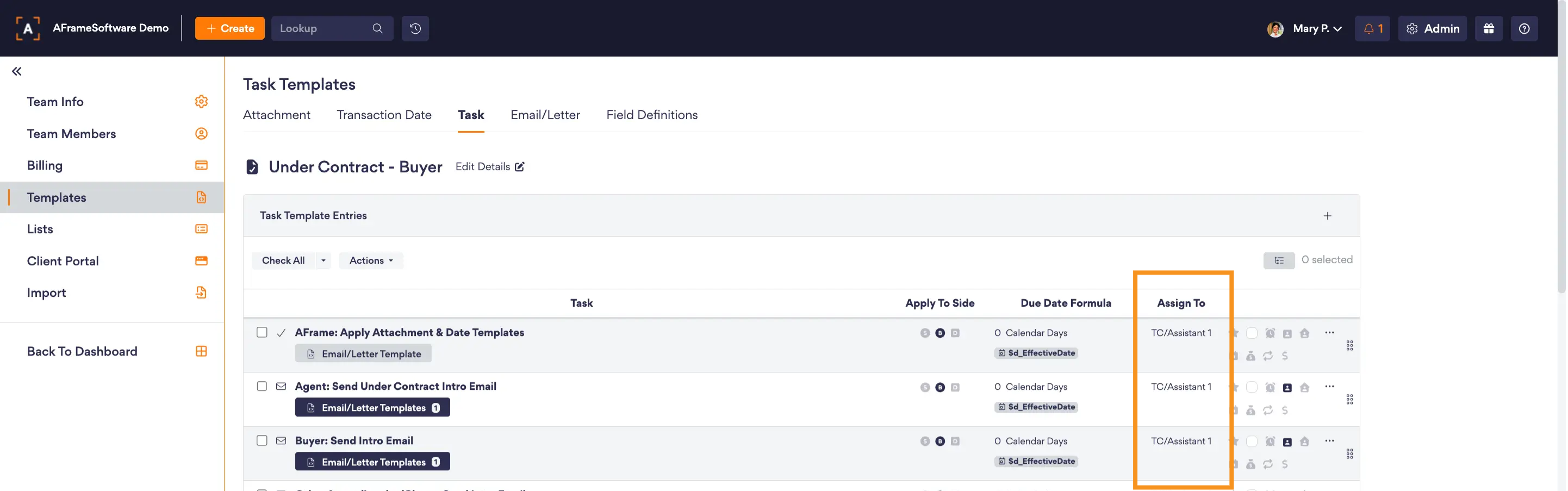
Transaction Role Assignment
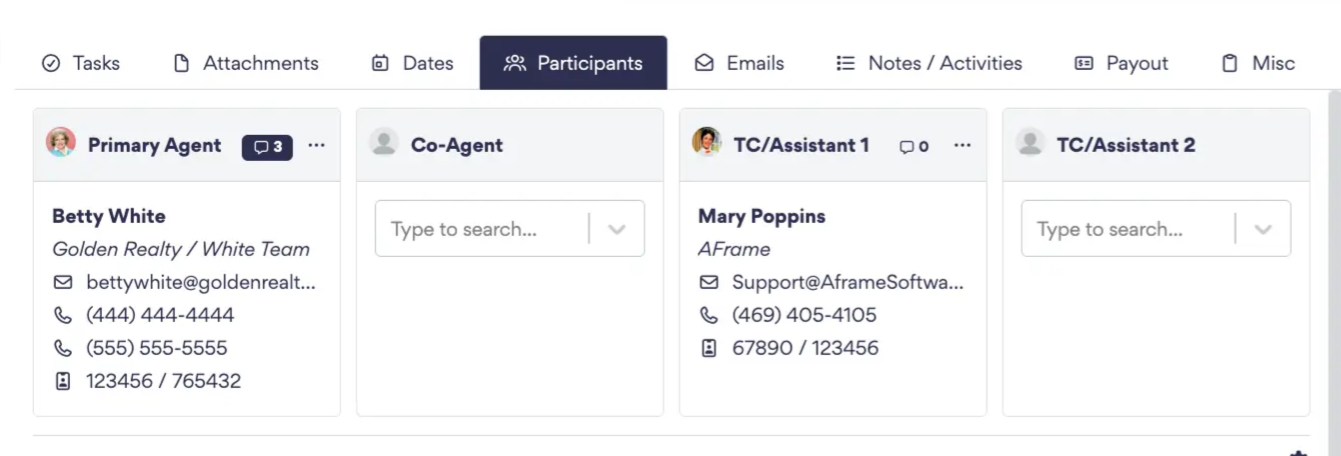
Check to make sure the transaction has all roles assigned needed for the task template to assign the tasks correctly based on it's role setup. You do have to have the users assigned to the transaction BEFORE you add the task template to the transaction.
For example: If you have the task template set to assign tasks to the TC1 role, but there is no one yet assigned to that role when the template is applied, then the tasks will automatically be assigned to the one ALWAYS consistent role assigned in every transaction–the primary agent.
Troubleshooting Steps
1. Confirm Task is in Transaction/Contact Task Tab
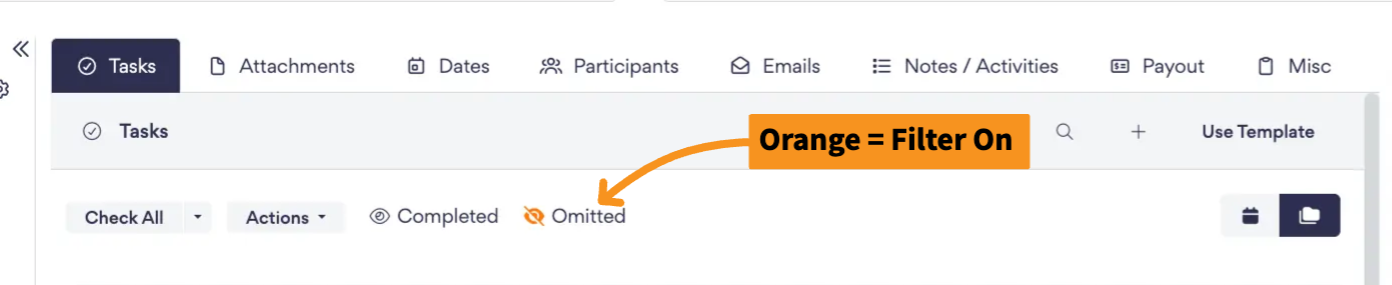
Ensure your completed or omitted filter is turned off to view all tasks in the transaction/contact task tab. If the task is visible, continue to next step.
2. Confirm Task Assignment
Check to see if the task assignment is correctly assigned, whether that be to you or a different standard user. We do not recommend assigning tasks to managed agents, as they cannot login to managed tasks or even know that the task is assigned to them.
If the task assignment is correct and you were originally viewing the task list out of the task page or daily focus, then continue to next step.
3. Confirm Filters
Check your filter selection for your view for any misalignment of wanted results.
Resolutions
Task Reassignment
When you need to reassign active tasks linked to a contact or transaction.
Single Task
- Click Task Title or Task Assignment icon
- Change to correct Standard User
- Click Save
Multiple Tasks
- Check All tasks that need reassignment
- Click Actions Button
- Click Edit option
- Change the Assign User section accordingly
- Click Save
Task Template User Reassignment
When you need to change the task assignment setting for the template.
Note: Changes will only be reflected when assigning the template going forward for new contacts/transactions.
Single Task
- Click Task Title or Assign To Column Entry
- Change Assign To Role/User Selection
- Click Save
Multiple Tasks
- Check All tasks that need adjustment
- Click Actions Button
- Click Edit option
- Check the Change Assign To section to make changes
- Change Assign To Role/User Selection
- Click Save