
In the My Profile section of AFrame, users can manage personal settings, defaults, and integrations tied to their individual profile. These settings are specific to each user, so team members on the same account can customize their own preferences independently.
TABLE OF CONTENTS
Helpful Resources
Videos
Articles

Open in AFrame: My Profile (Click your name in top banner)
My Profile Application Defaults
The My Profile page includes the same settings found in the Team Members profile page, with additional options under the Application Default section. Here, you can set your default home page, choose default tabs for the detail page, and select your transaction email signature either your personal profile signature or the primary agent’s custom signature set in their profile settings.
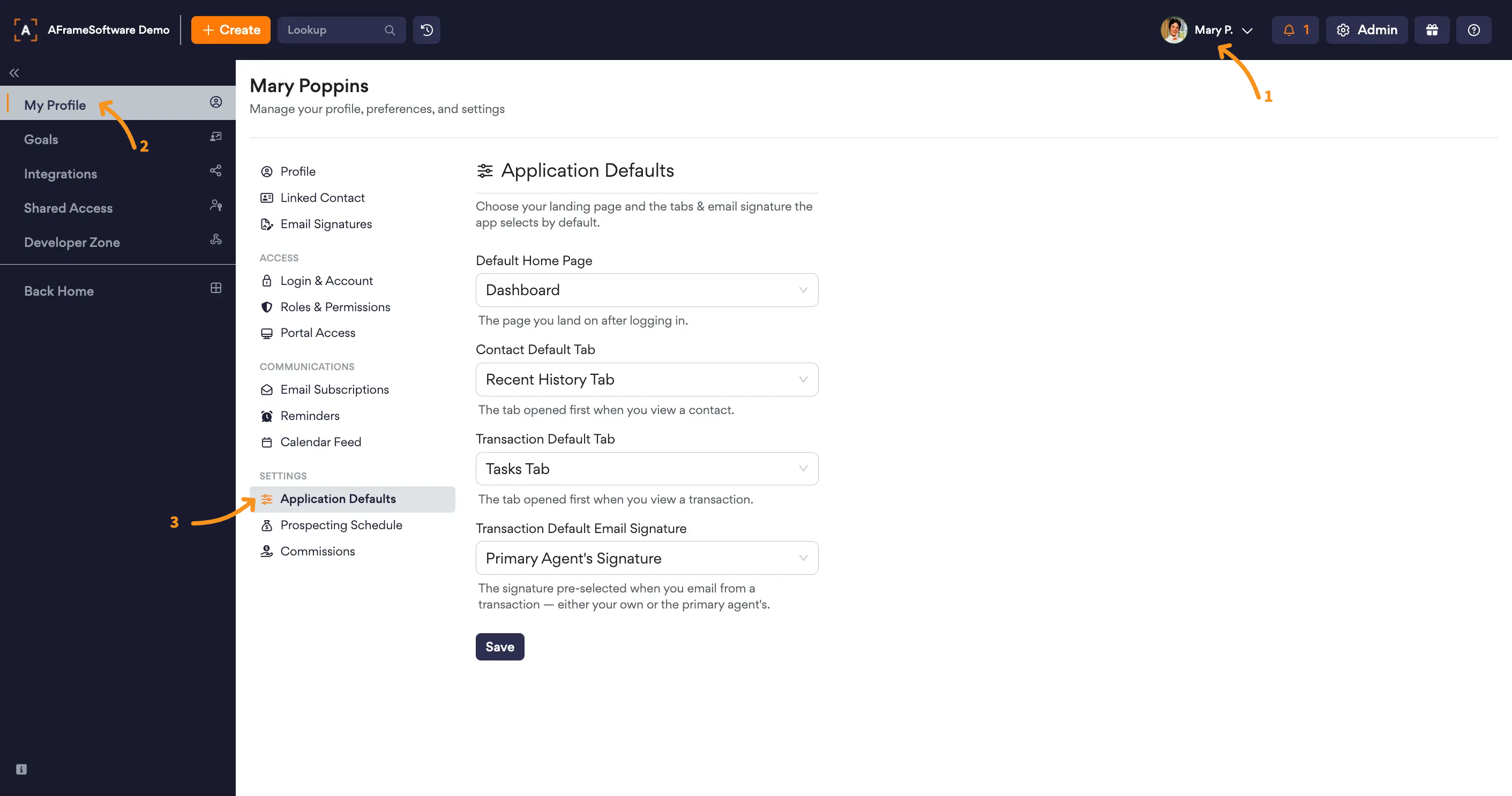
Default Home Page
Choose which screen you land on when logging into AFrame each time.
Contact Default Tab
Choose which tab is shown first when opening a contact’s detail page.
Transaction Default Tab
Choose which tab is shown first when opening a transaction's detail page.
Transaction Default Email Signature
Choose which signature is used when sending emails from a transaction. You can use your profile's signature or the primary agent’s custom signature set in their profile.
Related Article: Email Signatures
Goals
Setting up your prospecting and income goals in the program is needed for tracking your progress and staying motivated. These goals work together to create a clear roadmap for your success, ensuring consistent progress toward your overall objectives.
Setup
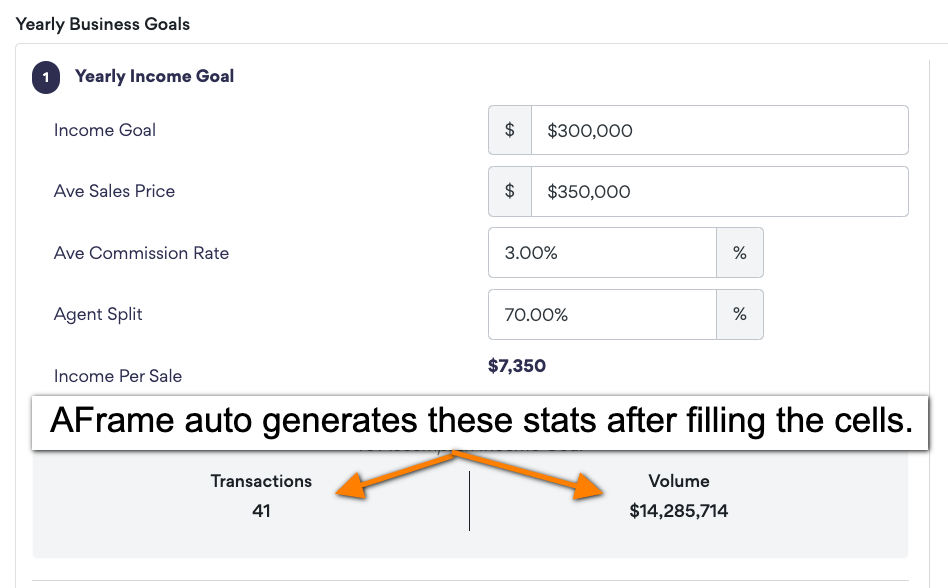
- Enter your Yearly Income Goal, which defines the total earnings you aim to achieve within the year. After filling in this section, AFrame will tell you how many transactions and volumes are necessary to reach your goals.
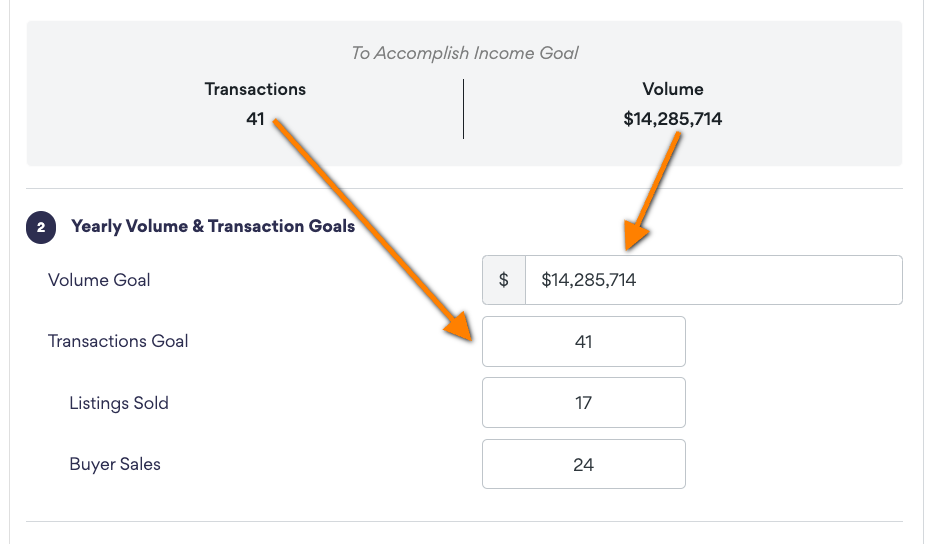
- Use this data AFrame provides for transactions and volume values in step 1 to set your Yearly Volume & Transaction Goals. Additionally, you can break down how many seller and buyer transactions you want out of the overall transaction goal.
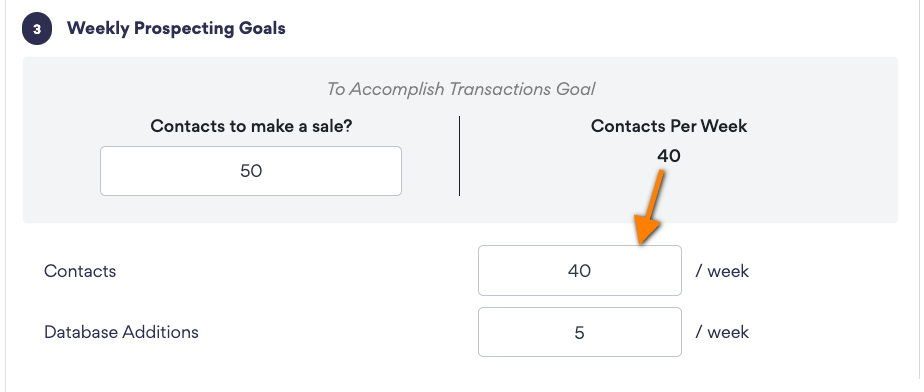
- Establish your Weekly Prospecting Goals, outlining the number of client interactions and new contacts you plan to generate each week. AFrame uses the logic that it takes 50 contact interactions to make a sale to produce how many contacts you need to interact with per week to reach your goals. Additionally, you can set your own goal of how many database additions you would like to make a week.
Related Article: Prospecting
Integrations
Integrations are connected at the profile level, allowing each user to manage their own third-party connections independently.
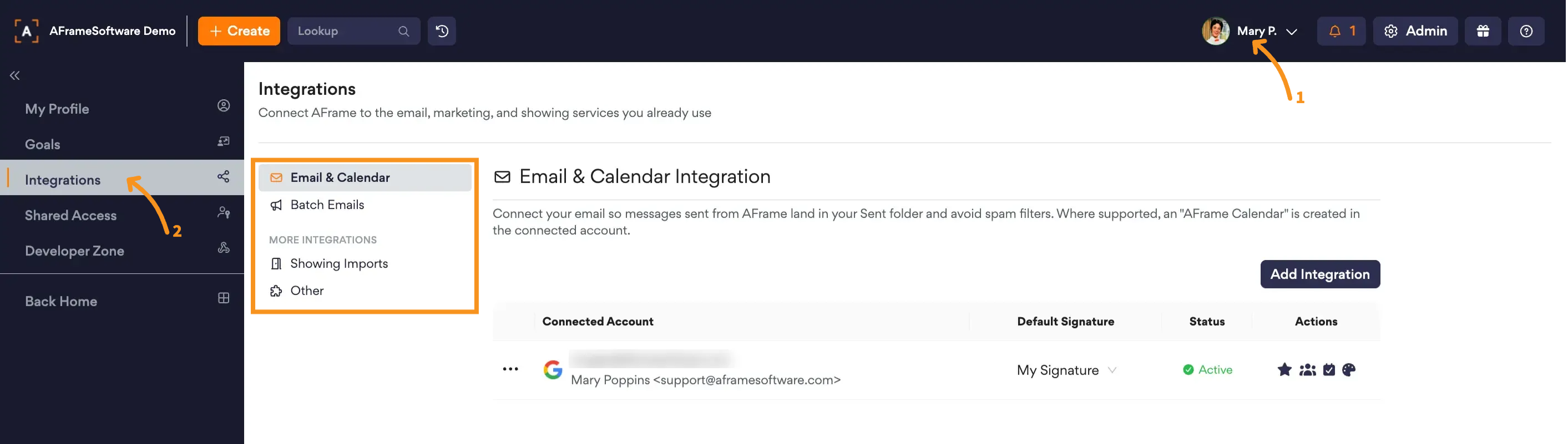
Email & Calendar
Connect your email so messages sent from AFrame land in your Sent folder and avoid spam filters. When supported, an "AFrame Calendar" is created in the connected account.
Related Articles: Email Integration, AFrame Calendar Feed
Batch Emails
- Twilio SendGrid - Send batch email through your own SendGrid account. You can add more than one connection, each has its own sender identity and API key.
- Mailchimp - Export your contacts to Mailchimp to send bulk email and newsletters. Once connected, you can export AFrame contacts to Mailchimp from the Contact search results page.
Related Articles: Batch Emails, SendGrid :: Batch Email Setup, MailChimp :: Export Contacts
Showing Imports
Auto import all showings, showing agent information, and buyer feedback from your ShowingTime or Supra account. Showing and feedback information appears under the Activities tab of each Transaction.
Related Articles: ShowingTime, Supra
Zapier
Zapier connects AFrame with over 1,000 other web services using an API key. It's a good fit for creating Transactions from intake forms, or creating Contacts from a lead form or another CRM.
Related Article: Zapier Integration
Shared Access
Shared Access allows you to give another AFrame user access to your account without sharing your password. This is useful for managing multiple AFrame accounts or giving another user access to help cover your account. The user does not need to be part of your Team Account. They simply need to be an AFrame Standard User.
- Go to My Profile settings (Click your name in top banner)
- Go to the Shared Access page in left navigation menu
- Use Invite User button to enter the AFrame Standard User's username to send the invite.
- The invited user will receive an email notification with a link to their Shared Access page, where they can accept the invitation.
- Once accepted, the user can select Switch Accounts from the dropdown under their name in the top banner to easily switch between accounts.
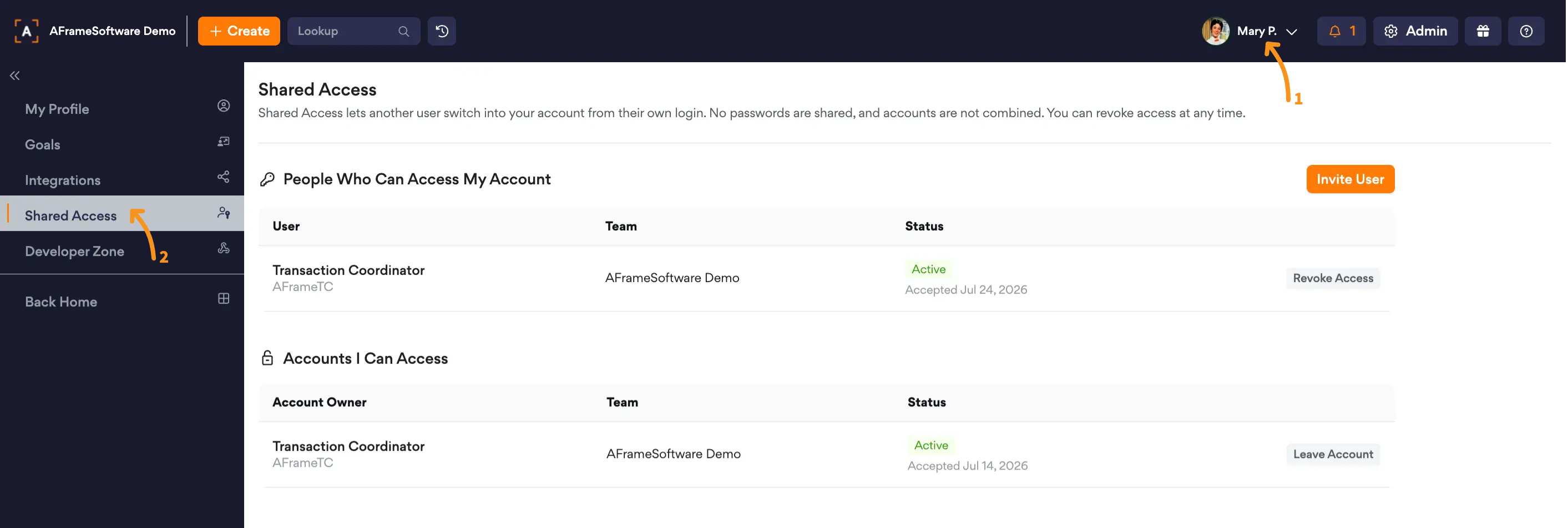
Open in AFrame: My Profile → Shared Access
Developer Zone
The Developer Zone provides tools for building custom integrations and automations with AFrame. From this section, you can create API keys, configure webhooks to receive real-time updates, review webhook delivery logs, and access our public API documentation to develop custom workflows and connections.
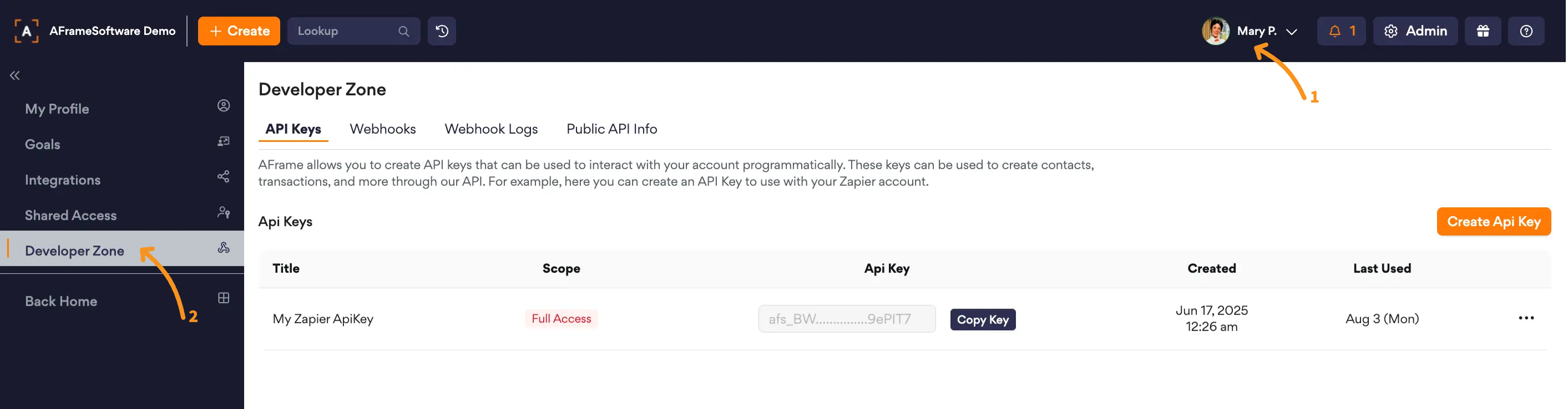
Open in AFrame: My Profile → Developer Zone
Related Articles: Zapier Integration, Open API