
Email integration is a required API connection to send emails from within AFrame, and it directly sends them with your email account and can be found in your sent email folder. You will handle the email replies directly in your email inbox as usual. AFrame does list a log of the sent emails from within AFrame under the transaction's email tab.
Additionally, when integrating your email, an AFrame calendar feed is added to your linked email calendar. All transaction dates and contact touch dates you are assigned to will auto-sync onto that feed.
TABLE OF CONTENTS
Integration Steps
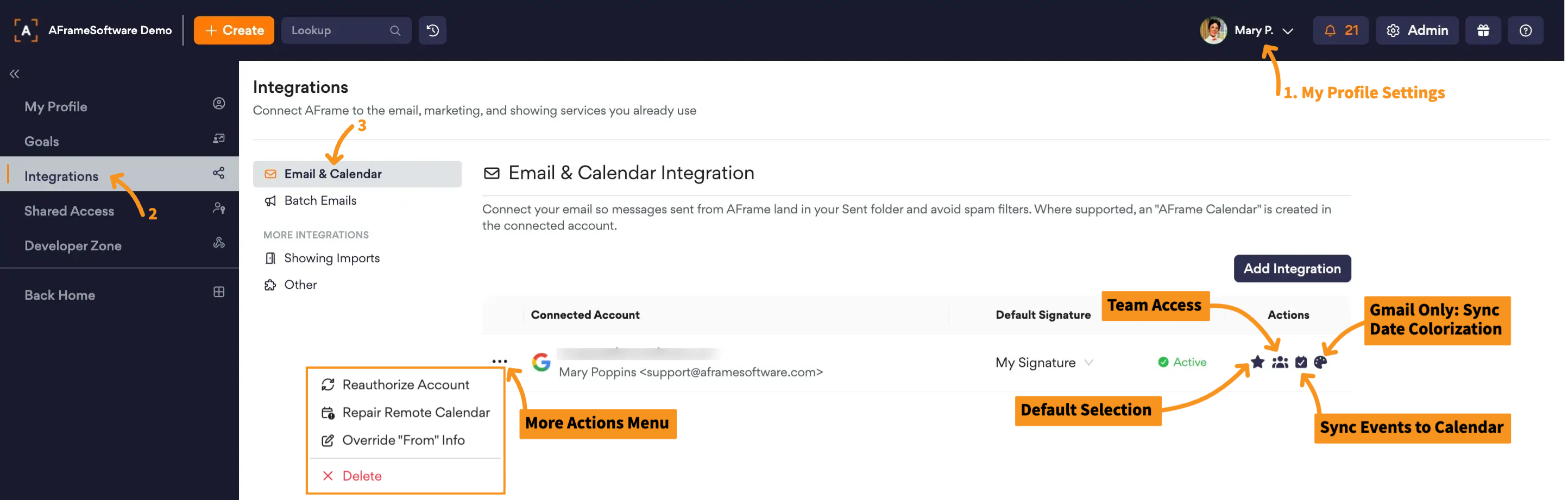
- Go to My Profile
- Go to the Integrations Page in the left navigation window
- Select Add Email Integration button
- Log in to your email account & authorize the AFrame connection
Multiple Email Integrations
Each standard user profile's subscription rate includes one email integration. Additional email integrations can be added for $9 monthly, per email.
Once multiple emails are integrated, they will appear in a dropdown menu in the From field when composing an email, allowing you to easily switch between them as needed.
Sharing Email Integrations: If you have other Standard Users on your account who need access to the same integrated emails, you can enable Team Access on the email integration. This allows other users to use the integration without adding it to their own profile, helping you avoid paying for duplicate integrations.
Email Reminder Tip: To remind users to check/edit the from email/signature selection, add an email template note/reminder which will populate a blue reminder banner at the top of the email compose page. Ideally, you only need to add this reminder to templates typically used first in the transactions, since AFrame's will preselect the last used selections per transaction.
Note: AFrame remembers the email & signature last used per transaction. It will auto select those last used for the next email created per transaction.
TC User Tip: Set your transaction default signature setting to pull the primary agent's email signature. This allows you to customize signatures per agent for each of their transaction emails, all while sending from your one personal email. This helps avoid the added cost of integrating separate custom email addresses for each agent and keeps all replies in one place.
Integrated Email Settings
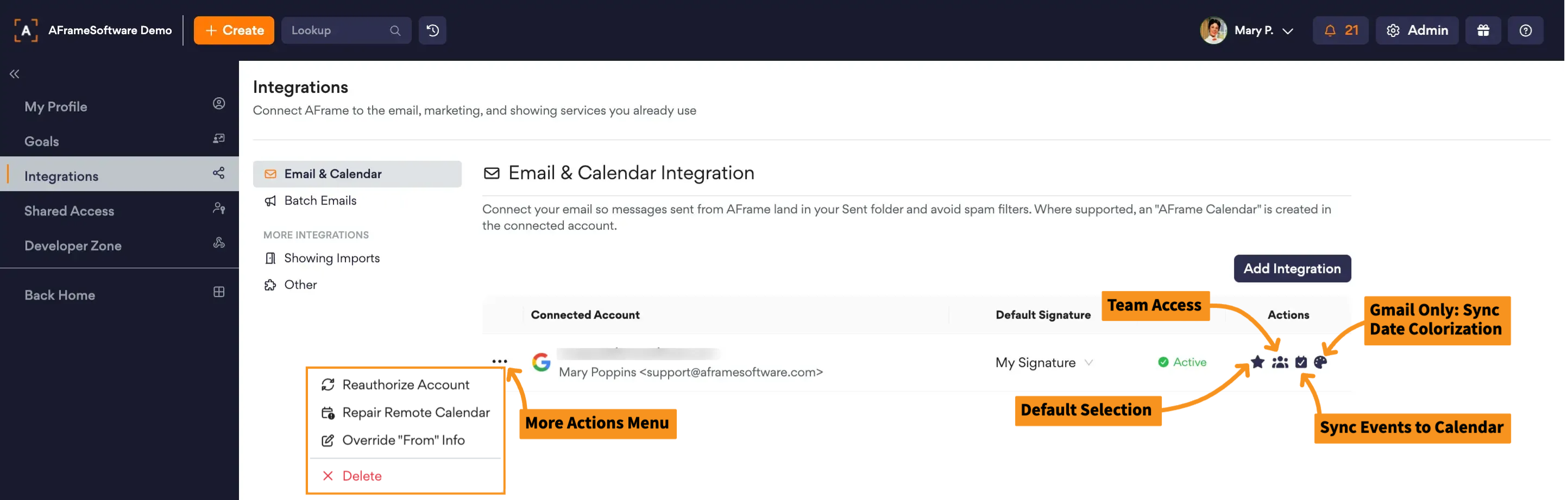
Default Signature
You can predefine your default signature per integrated email in your profile. This is very helpful if you have more than one email integration in your profile, as it will automatically use the selected signature depending on which email you choose to send from. Your options include any signature saved across the account, from any standard user or managed agent profile signatures.
Note: The email signature used is added from your AFrame account, not your signature saved in your email account directly.
Default Email
When you have multiple emails integrated, you can use the default setting to select which email will be your default "from" email for your user profile.
Team Access
You can toggle on the team icon to give your other standard users in your team access to send emails from this email integration.
Calendar Sync
You can toggle on/off if you want your profile's events to sync to the email integration's calendar via the auto created "AFrame Calendar" feed.
Event Colorization Sync
For Gmail users only, if you have the transaction event date colorized it can be synced with your google email integrated calendar.
Email Override
You can edit the way your name displays when sending your email or even override the integrated email to use an authorized alias email linked to the integrated email.
Open in AFrame: My Profile → Integrations → Email & Calendar
Related Articles: AFrame Calendar Feed, AFrame Calendar Page