
The Team Members page allows the user to manage team member profiles, permissions, roles, notifications, and account access throughout AFrame. There are 2 different types of Team Members in AFrame: Standard Users and Managed Agents.
TABLE OF CONTENTS
Accessing the Page
You will find the page under the Admin Settings in the left navigation menu. If you need to filter down the list, you can use the filters available on the left menu.
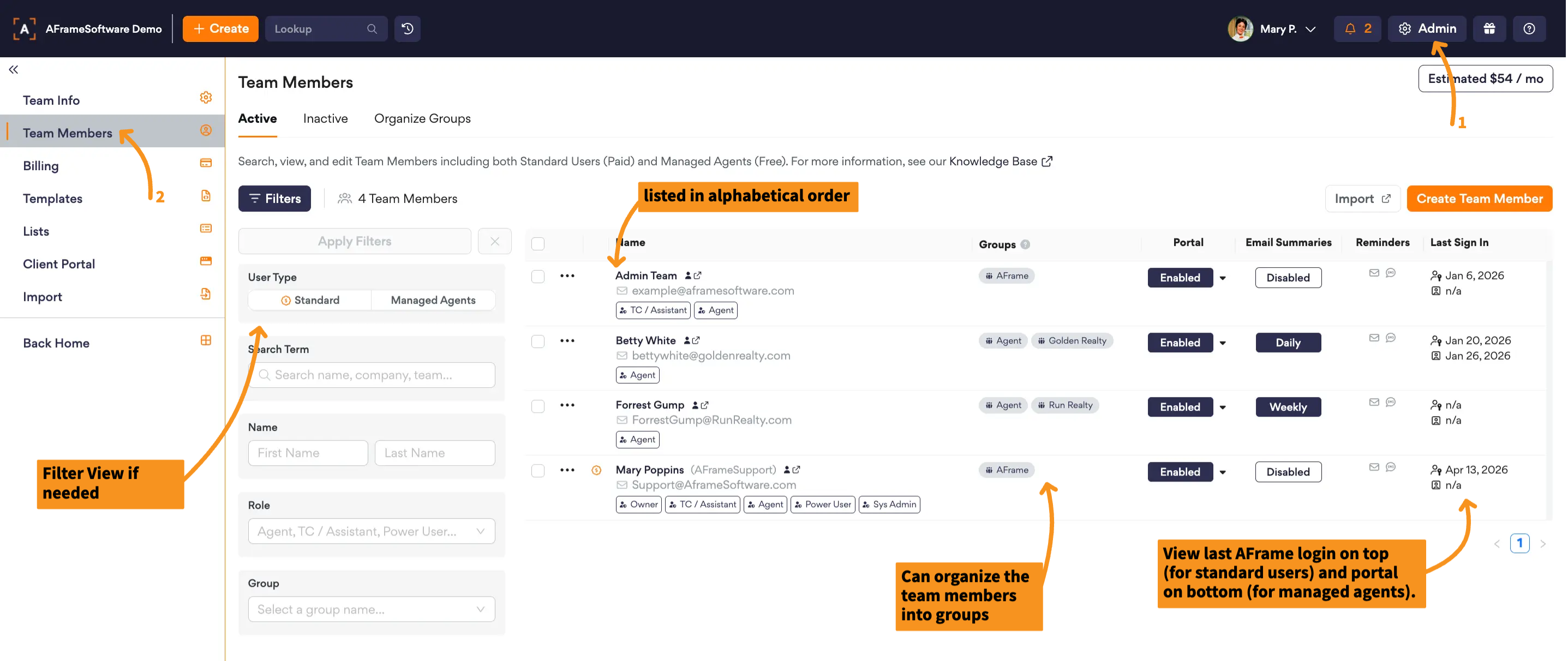
Open in AFrame: Admin → Team Members
Profile Types
Standard Users
Standard Users are billable team members with full access to log in and manage data within AFrame. You can customize each standard user with multiple roles and permissions to match their responsibilities. Pricing is billed monthly per standard user, and your total monthly cost automatically adjusts based on the number of users in your account, providing flexible and predictable pricing as your team grows.
Managed Agents
Managed Agents are free users who cannot log in to the system, but they allow you to track transactions and run reports for each. Additionally, the managed agents can access their agent portal to view their transactions if you choose to use this feature. These users are ideal for independent transaction coordinators who manage multiple agents that do not require login access. They are also useful for agent teams that might have agents that they want to track, but do not need the ability to log in.
Profile Sections
Each team member profile includes several sections used to manage account details, permissions, communication preferences, and personal settings.
General
- Profile – profile picture, logo, last access log, & time zone setting
- Linked Contact – each profile is linked to a contact in the CRM. Here you can see contact details & edit the linked information as needed.
- Email Signatures – create custom email signature(s)
Access
- Login & Account – switch profile type, manage standard user login info, & delete/deactivate
- Roles & Permissions – set profile role type & standard user permissions.
- Portal Access – enable, view, & email access link for agent portal
Communication
- Email Summaries – setup daily or weekly email summary of tasks and dates
- Reminders – manage how to receive reminders
- Calendar Feed – email managed agent calendar feed instructions
Settings
- Prospecting Schedule – manage standard user's contact rating prospecting schedule
- Commissions – set profile's Commission Payable To field
Managing Team Members
Standard Users with the "Power User" or "Accounts & Billing" permission can create, update, deactivate, or remove team member profiles directly from the Team Members page.
For step-by-step instructions on adding or removing users, see the related articles below: