
The Import tool is the fastest way to populate your AFrame account. Whether you are migrating from another CRM or adding a new lead list, you can upload your data in bulk using a CSV file. The different import types are: Contacts (with or without transactions) and managed agent profiles.
TABLE OF CONTENTS
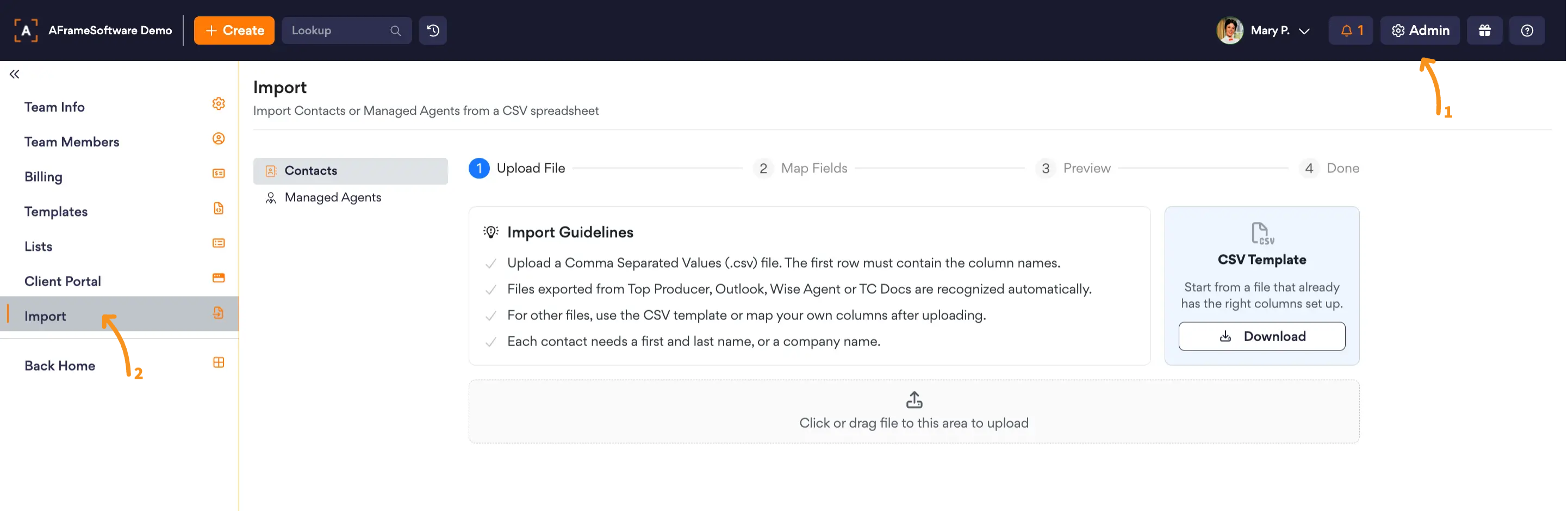
Open in AFrame: Admin → Import
Helpful Resources
Articles
Data Cleanup
Import Templates
Contacts
Use the contact only template if you do not plan to import past transactions linked to these contacts, importing past transactions later can cause duplicate contacts in your account. Use the linked article below for the contact only template and instructions.
Related Article: Import Contacts
Contacts+Transactions
You can use this template to upload transactions (past & current) along with the transaction buyer/seller. You can also include contacts without transaction data without needing to use another import template. Use the linked article below for the contact+transaction template and instructions.
Related Article: Import Transactions
Managed Agent Profiles
To quickly create multiple managed agent profiles at once you can use the linked article below for the managed agent template and instructions.
Related Article: Import Managed Agents