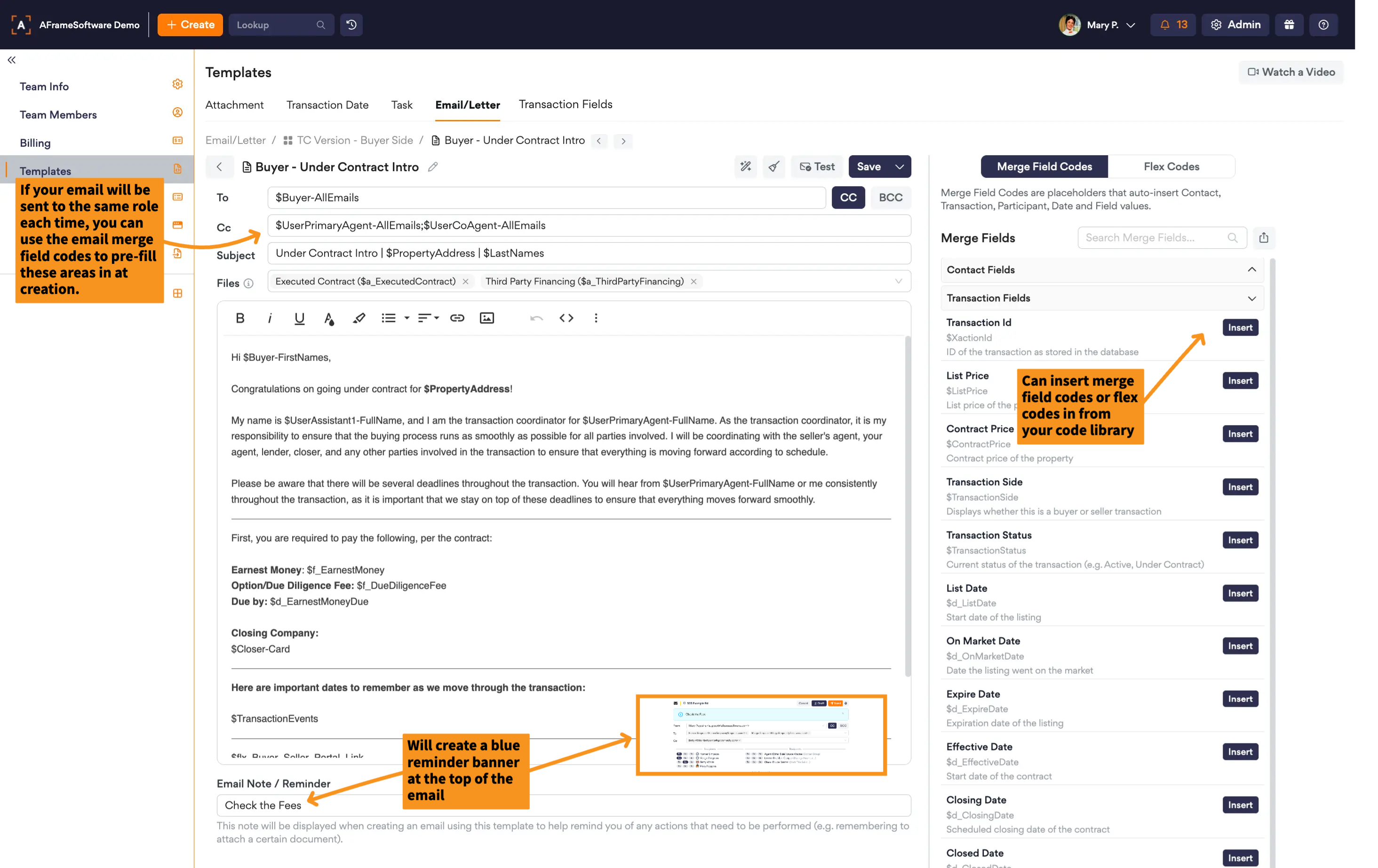
As with any transaction management platform, the proper use of templates can be a huge time saver since much of what you do is repetitive. Setting up Email/Letter Templates can help ensure each client gets a consistent and professional experience. Using the merge fields capability, AFrame can auto-fill important information directly into your email/letter templates as you use them within your transactions or directly with your contacts list. In this article, we will introduce you to the email/letter features and how to create templates.
TABLE OF CONTENTS
Helpful Resources
Videos
Articles
Accessing Template Page
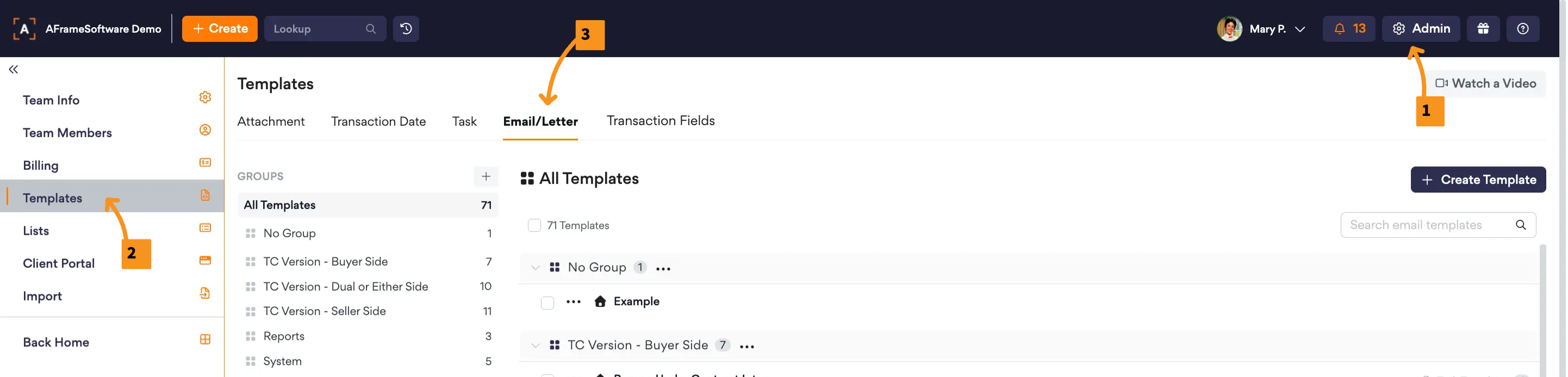
Open in AFrame: Admin → Templates → Email/Letter
Features
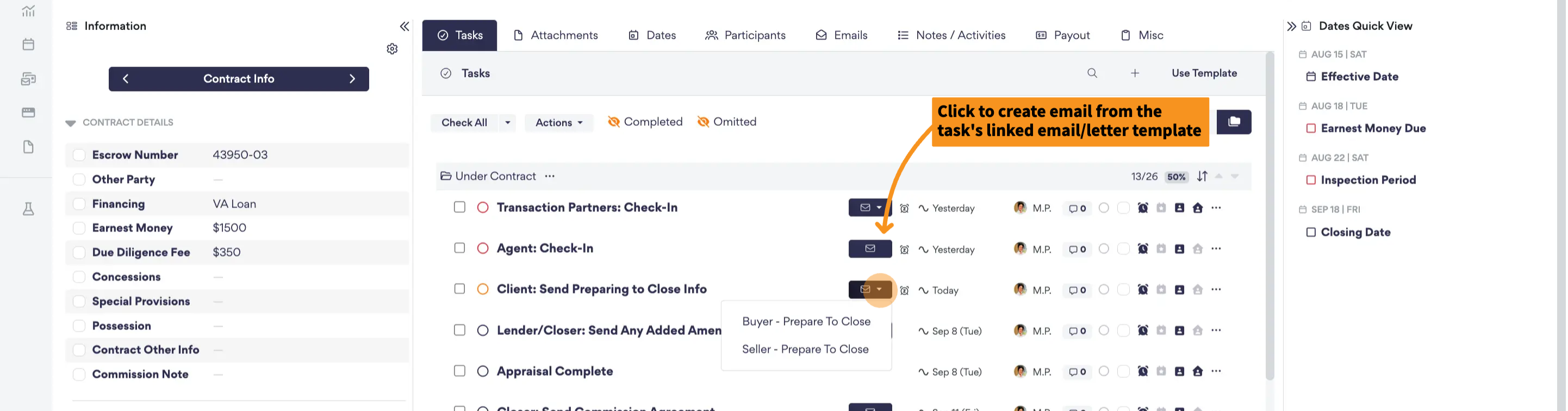
Task Template Association
You can associate email/letter templates to tasks within the task templates. Linking the email template to the email task will populate a shortcut "create" button to the right. This makes it especially easy to create the templated email for that transaction and check off the task at the same time. You can also link multiple email/letter templates to a task to choose from.
Related Article: Task Templates
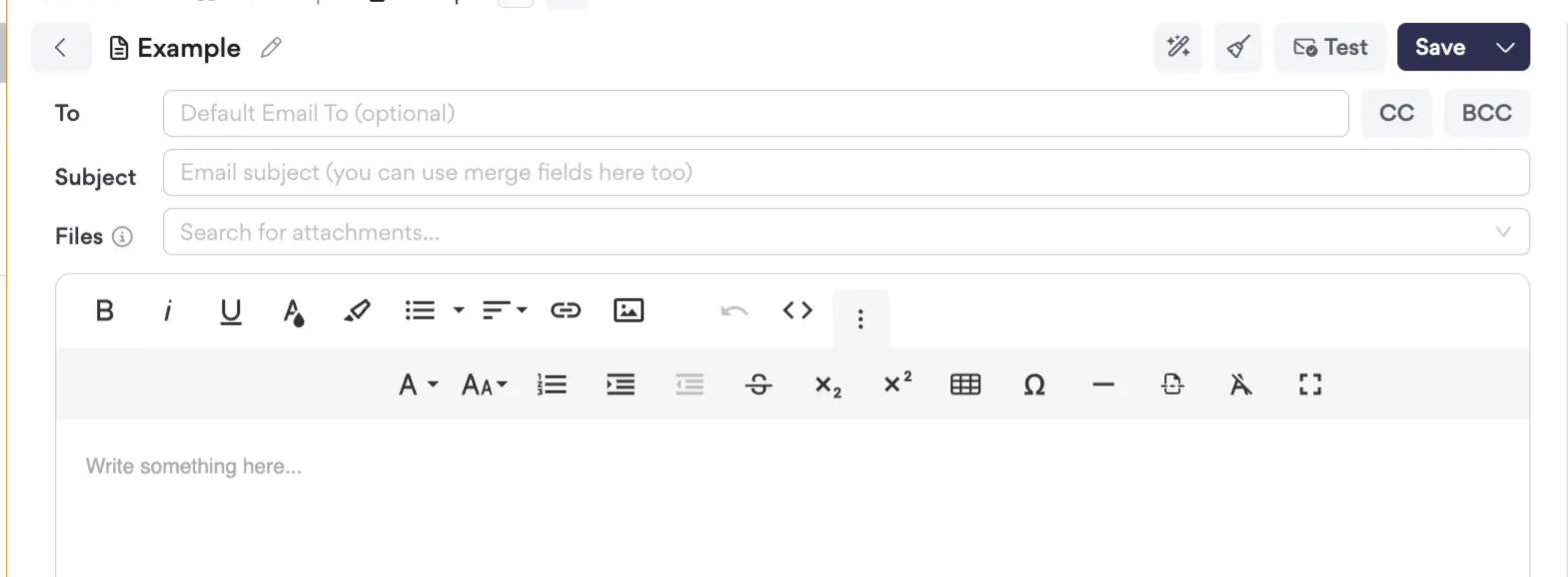
HTML Editor
AFrame's fully functional HTML editor can make the process smoother and more efficient when creating emails. This tool lets you make visually appealing and engaging emails that stand out in the inbox. You can add images, embed videos, format text, add colors, and you can edit the HTML directly to convey your message effectively. The editor allows you to customize your emails to match your brand's style and preferences. This makes it easy to create professional-looking emails that align with your brand's image.
Template Reminder/Note Banner
Adding a reminder note on the email templates will create a blue banner to appear at the top when creating emails from that template. For example, you may want to remind users to attach a specific file before sending the email.

Attachments
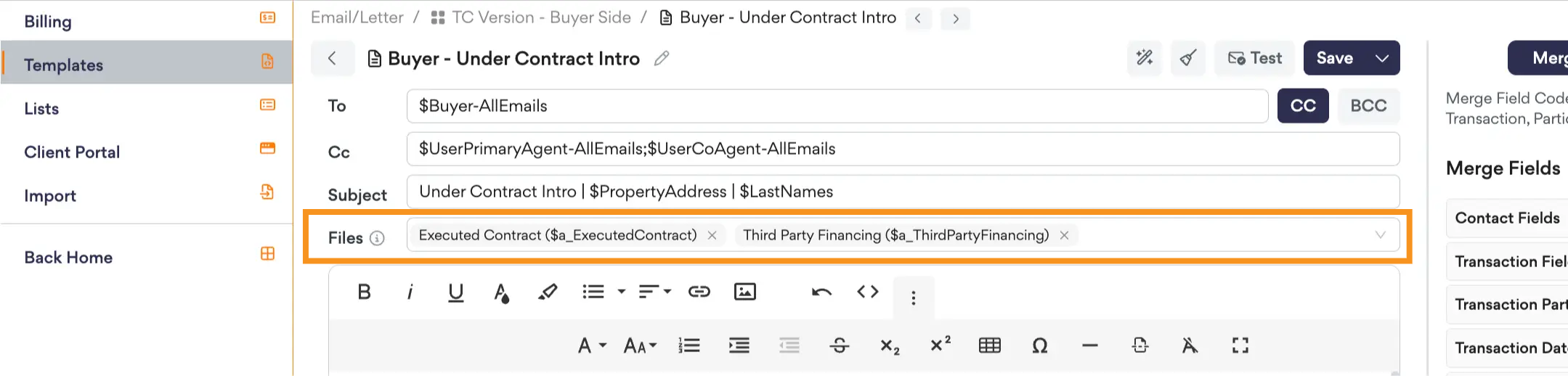
When creating an email, you can easily attach files from your computer, team file storage, or the transaction’s Attachments tab. You can also use the Files section of an email template to predetermine which attachments get attached to the email. If a file is uploaded into the matching attachment placeholder for that transaction, which is found using its unique attachment merge field code, AFrame will automatically attach that file when the email is created.
Merge Field Codes
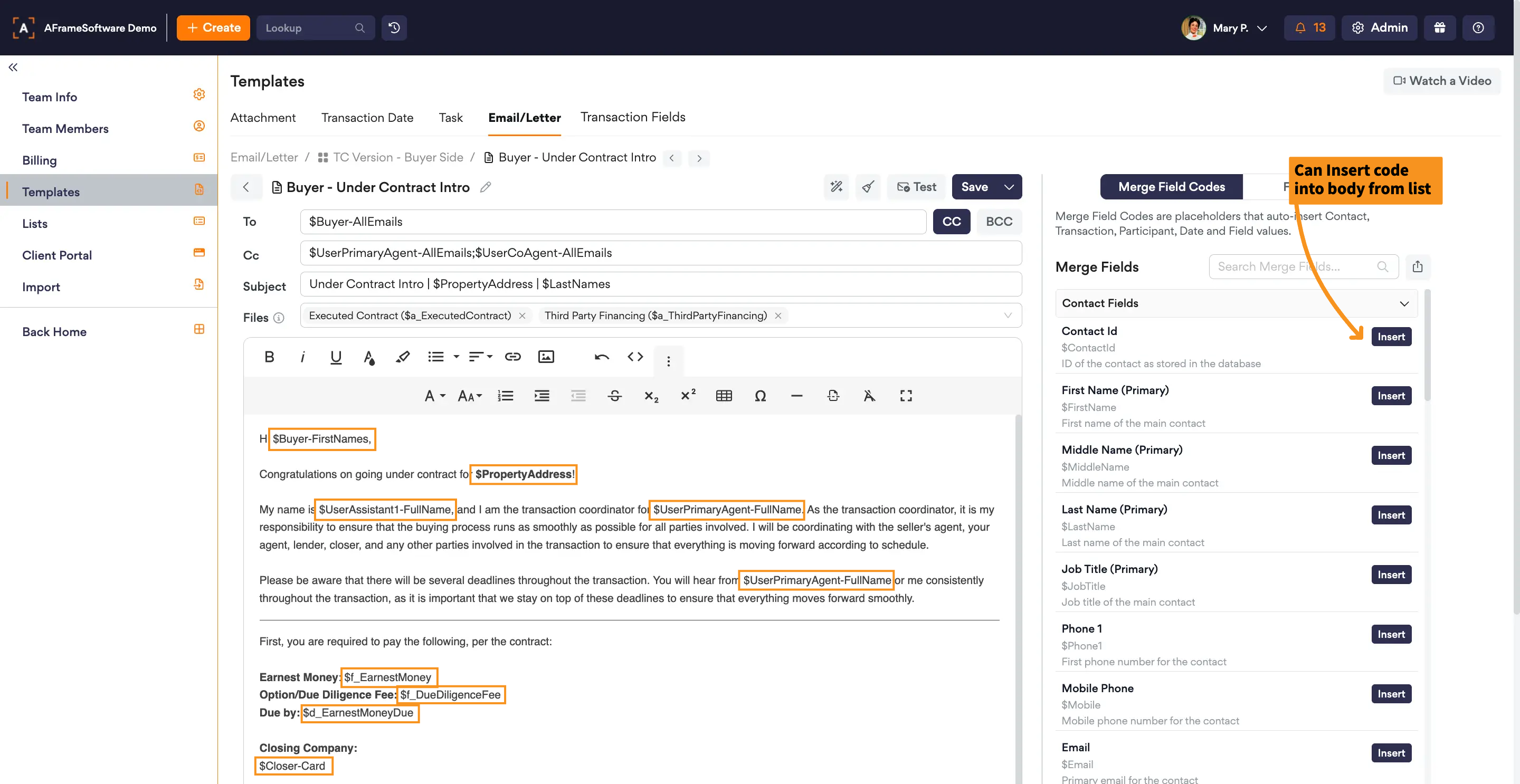
When creating an email, merge field codes can save time by automatically populating information into your emails. Insert a merge field code into an email template or email, and AFrame will pull the matching information from the transaction or contact record. Merge field codes can populate details such as contact information, transaction dates, and transaction fields. Each merge field has a unique format of $TypePrefix-Title or can be inserted from the list on the right side of the editor or by typing $ to display available options.
Related Article: Merge Field Codes
Flex Codes
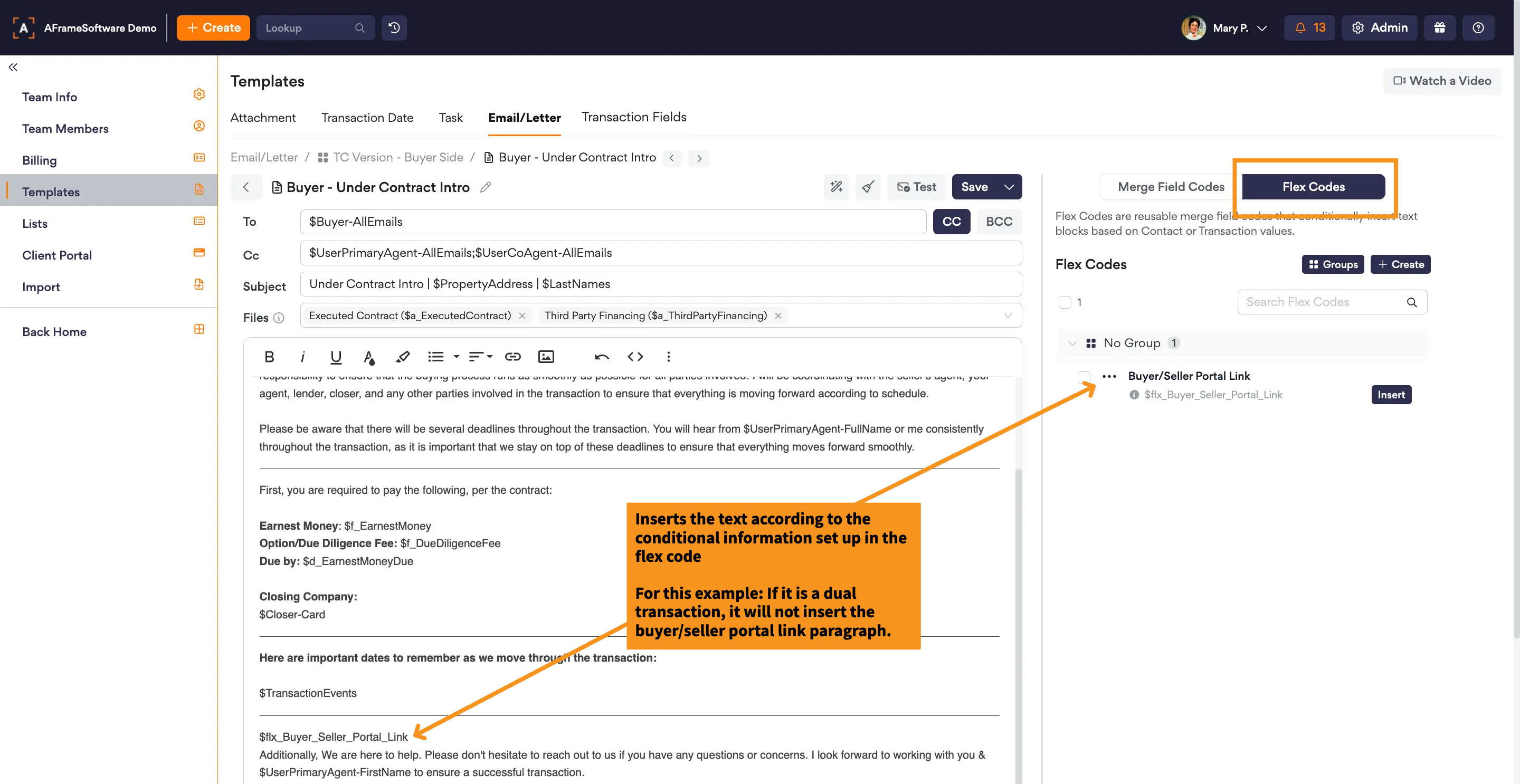
Flex Codes allow you to conditionally add text to the body of an email template based on specific criteria. They work alongside merge field codes to create more dynamic email templates by displaying specific content only when the defined conditions are met.
Related Article: Flex Codes
Creating Templates
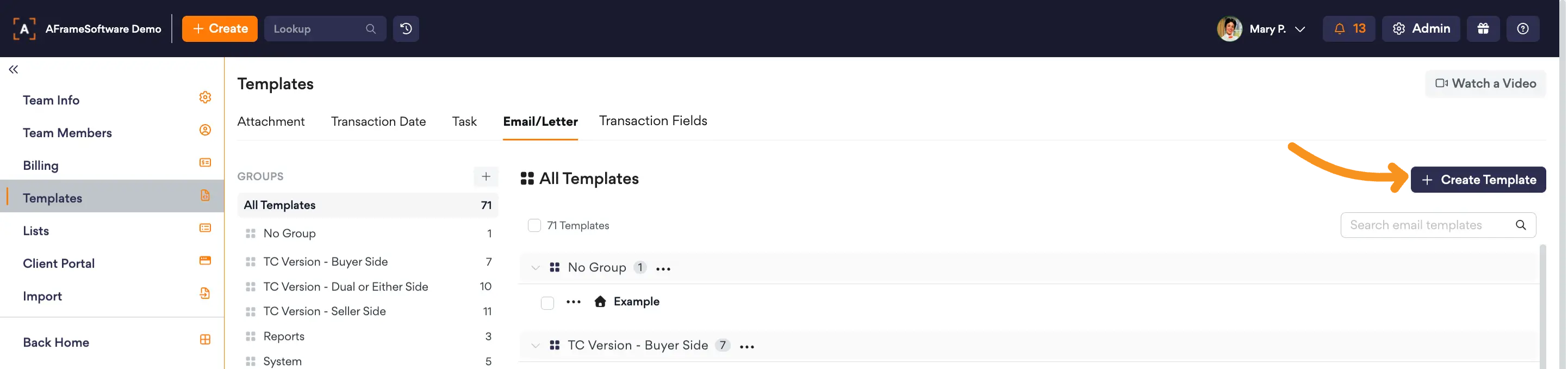
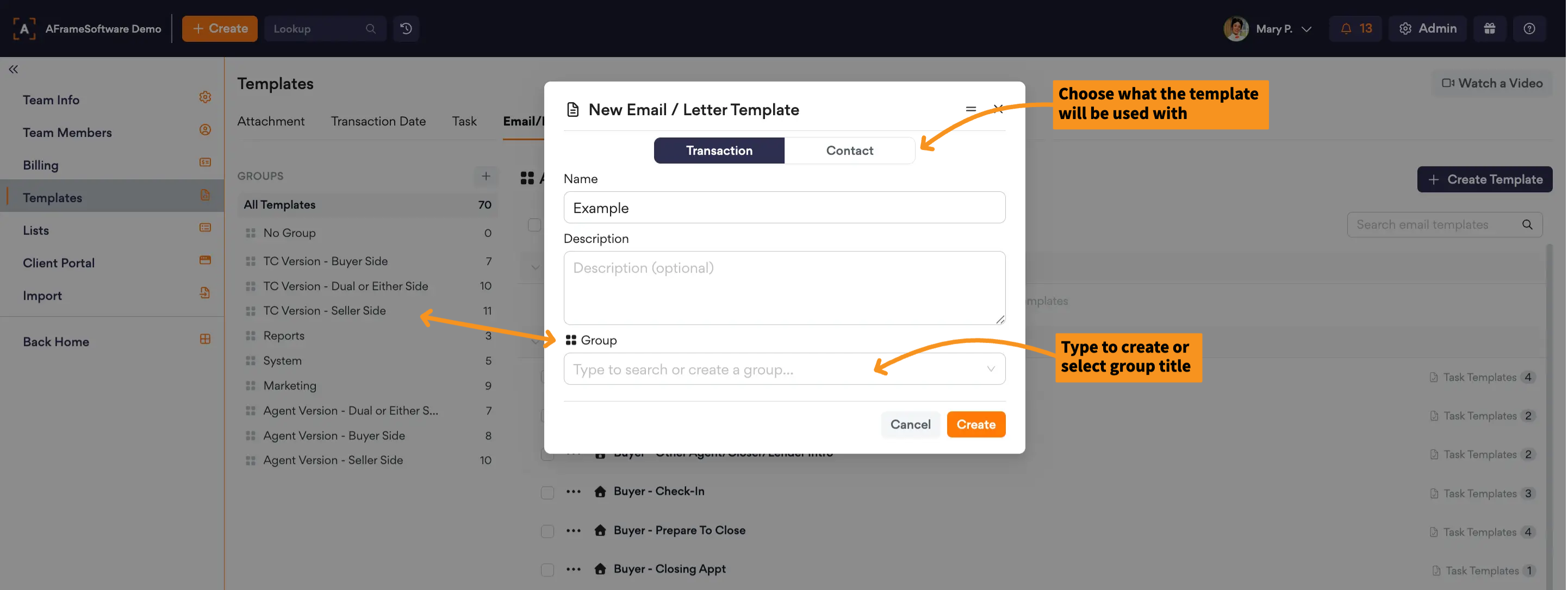
- Under Templates, Open the email/letter template view. Select + & then select Email/Letter Template.
Open in AFrame: Admin → Templates → Email/Letter
- Name your email/letter template, select your organizational group, and choose if you will use it with transactions or contacts. Optional: Add a description to summarize the template.
- Compose your email template. Use Merge Field Codes or Flex Codes to help auto-insert transaction or contact info into the email.