
Where you will enter your company info and set default preferences that apply to your transactions. These settings help streamline your workflow by automatically applying your preferred configurations when creating and managing transactions in AFrame.
TABLE OF CONTENTS
Helpful Videos
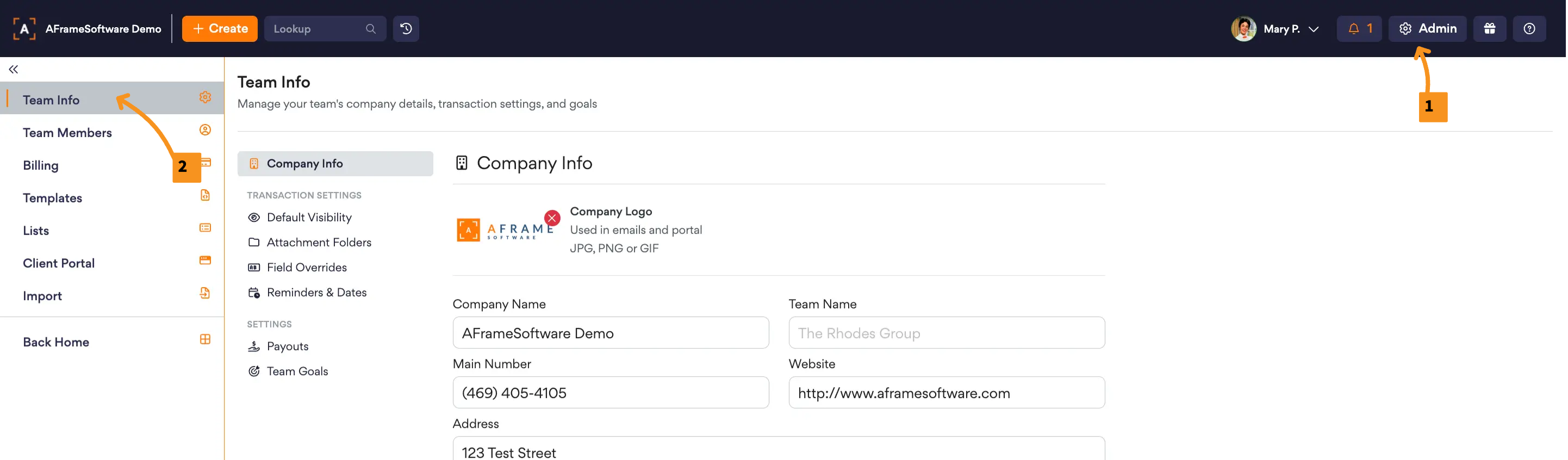
Open in AFrame: Admin → Team Info
Company Info
The Company Info section is used to manage your team account's branding and information used throughout AFrame. Each field also includes its own merge field code, allowing you to automatically pull that information into Email/Letter Templates when needed.
Transaction Settings
The Transaction Settings section contains default transaction-related settings used throughout your account.
Available sections include:
- Default Visibility – Manage default portal visibility settings for items not added through templates
- Attachment Folders – Configure default empty folder structures for all new transactions
- Field Overrides – Customize naming of contract start date (Effective Date).
Note: The merge field code will always remain $EffectiveDate - Reminders & Dates – Manage reminder timing and date-related preferences
Pro Tip: Each standard user profile also has personal default settings located under My Profile (click profile name in top banner) to manage preferences such as default homepage, default transaction/contact tabs, transaction email signature defaults, and relationship rating prospecting schedule.
Team Settings
The Settings section contains additional team-wide configuration options.
Available sections include:
- Payouts – Configure payout-related settings and defaults
- Team Goals – Manage production and goal tracking settings for the team account