
AFrame integrates with SendGrid to ensure emails get delivered to inboxes rather than spam folders. You will need to set up a SendGrid account. Follow the directions below to integrate SendGrid within your AFrame account.
TABLE OF CONTENTS
- 1. Create Sender(s) In Your SendGrid Account
- 2. Verify Your Domain
- 3. Create A SendGrid API Key
- 4. Paste SendGrid API Key Into AFrame
1. Create Sender(s) In Your SendGrid Account
In order for users in your AFrame account to send emails through SendGrid, you need to create a matching Sender in your SendGrid account.
- If signing up for a New SendGrid Account, you probably already created your first Sender, but if not, you can create one here. Make sure the Sender's email matches the one in your AFrame account.
- Once added, SendGrid will send you an email asking you to verify the new Sender.
- You will want to add additional Senders for each user in your AFrame account.
2. Verify Your Domain
If you are able, we recommend that you verify your domain name from within SendGrid to offer additional protection against spam filters. SendGrid has a Help Article on how to do this as well.
Open in SendGrid: Settings → Sender Authentication
3. Create A SendGrid API Key
AFrame uses a SendGrid API key to access and send emails through your SendGrid account.
- When creating a SendGrid key, give it a name & allow for "Full Access"

Open in SendGrid: Settings → API Keys
- Once the key is created, click it to copy the key to your clipboard.

4. Paste SendGrid API Key Into AFrame
Now that you have set up SendGrid, we need to copy this data into AFrame. Enter an approved SendGrid email and paste your SendGrid API Key into the appropriate form fields. Then click Save.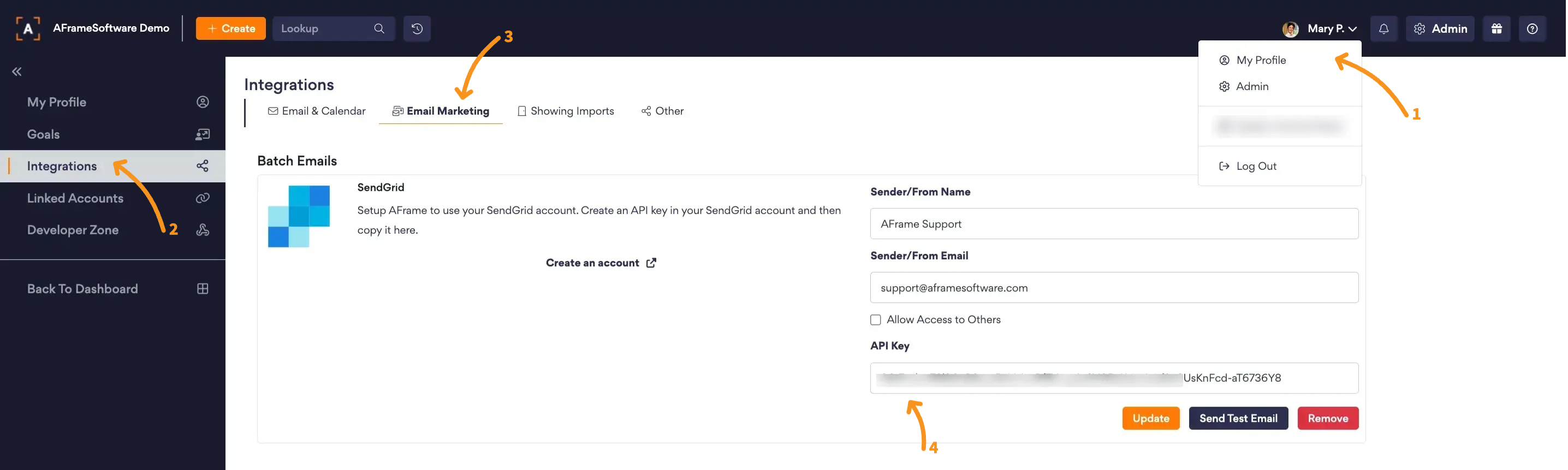
Open in AFrame: My Profile → Integrations → Email Marketing
For information on how to create batch emails, check out our Batch Emails article.