
Adding team members in AFrame is quick and simple, helping you keep everyone connected and organized. Whether you’re bringing on a new agent, assistant, or transaction coordinator, setting them up with access ensures your team can collaborate seamlessly and stay on top of every transaction.
TABLE OF CONTENTS
Helpful Resources
Videos
Articles
Team Member Profile Breakdown
Standard Users are paid users with the ability to log in and change data in the system. You can customize the standard user with multiple roles and/or permissions. The rate is set at a monthly cost per standard user. In this article, we will go over the standard users.
Managed Agents are free users who cannot log in to the system, but they allow you to track transactions and run reports for each. In addition, the managed agents can access their agent portal to view their transactions. These users are ideal for independent transaction coordinators who manage multiple agents that do not require login access. They are also useful for agent teams that might have agents that they want to track but do not need the ability to log in.
Adding Team Members
- Open the Team Members Page and select Create Team Member button.

Open in AFrame: Admin → Team Members
- Pick to create a profile from existing contacts in your database with the search option or create new contact to tie to the new profile.
- At the top of the modal, you will pick for the team member profile to be a billable standard user or a free managed agent profile. Next, set the profiles permissions and roles.

Removing Team Members
You have 2 choices for removing a team member: deactivate or delete. We recommend that you deactivate profiles rather than delete them.
Deactivate: This will place the team member profile inactive and eliminating them from transaction role dropdown selections without actually deleting them. This also saves all the data attributed to the profile so that reports and statistics remain accurate. For standard users, this will remove them from your monthly billing.
Delete: This completely removes the team member profile from your account. You must assign everything to an "active" team member, as data cannot be in AFrame without being tied to a profile. This may have adverse effects when you want to run reports and statistics in the future, as it will reassign tasks, transactions, contact ownership, and item completion tracking to the new selected profile as if it was assigned to them all along. Instead, we recommend deactivating the profile so they are then "inactive" to keep the data accurate.
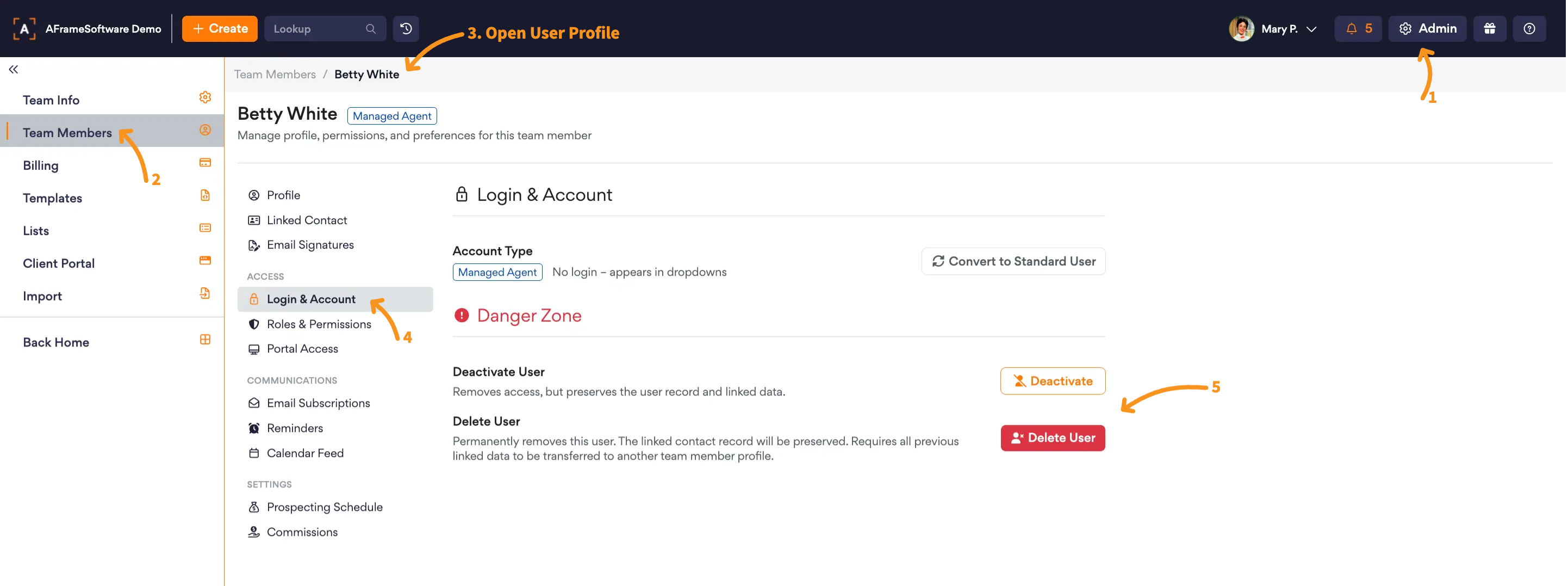
Open in AFrame: Admin → Team Members