
View all of your important AFrame dates in your calendar by setting up a linked calendar with AFrame. Follow below for step-by-step instructions.
Note: If standard users have set up an email integration in their profile, then an AFrame Calendar Feed is already created in that email's calendar. They do not need to manually subscribe to Calendar Feed.
Subscribe To AFrame Calendar Feed
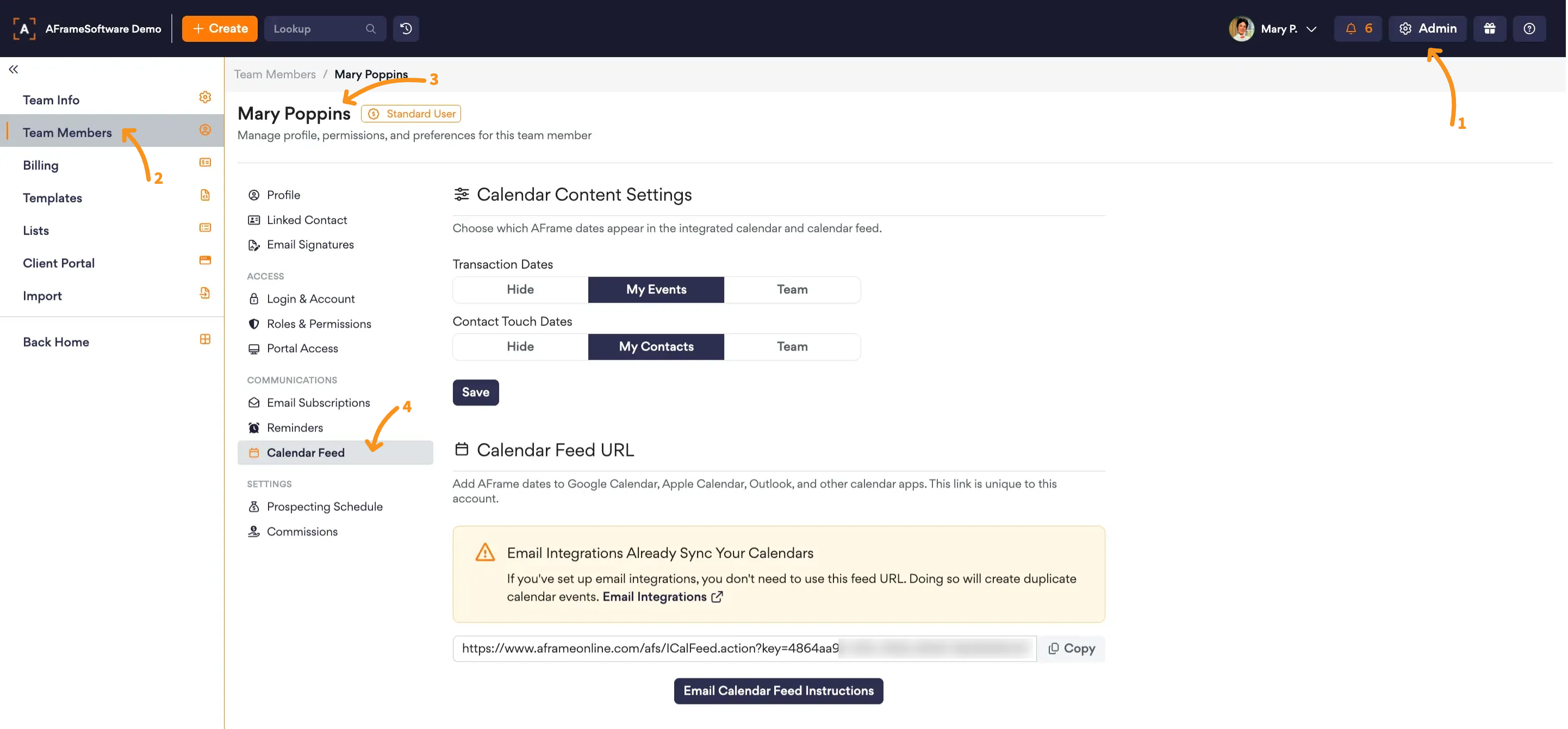
Open in AFrame: Admin → Team Members → Select Profile → Calendar Feed
- Go to Admin → Team Members
- Open the Team Member Profile
- Open Calendar Feed Section
- Manage Calendar Content Settings
- Subscribe to AFrame Calendar Feed
- Select Copy to copy the Calendar Feed URL and subscribe to their AFrame Calendar Feed in their prefered calendar.
- Select Email Calendar Feed Instructions to send setup instructions to the team member’s email. They can follow the instructions for their specific calendar host.
- Select Copy to copy the Calendar Feed URL and subscribe to their AFrame Calendar Feed in their prefered calendar.
Managed Agents and Buyers/Sellers can access the Calendar Feed Instructions button inside their portal under the settings page.