
Within your admin settings, you can customize different lists. In this article, we'll explore the list types and ways you can customize the lists to better suit your specific needs and preferences.
TABLE OF CONTENTS
Transaction Lists
Transaction Statuses
Customizing the default transaction status list allows you to tailor your account to create a list of statuses that best represent your transaction stages. You will have 5 main stages to use to categorize each status: pre-active, active, under contract, sold, & not sold (fell apart). You can also choose the visibility of select statuses within the agent & buyer/seller portals, giving you more control over who sees what. Additionally, you can use the transaction status or status stage filters in the search pages.
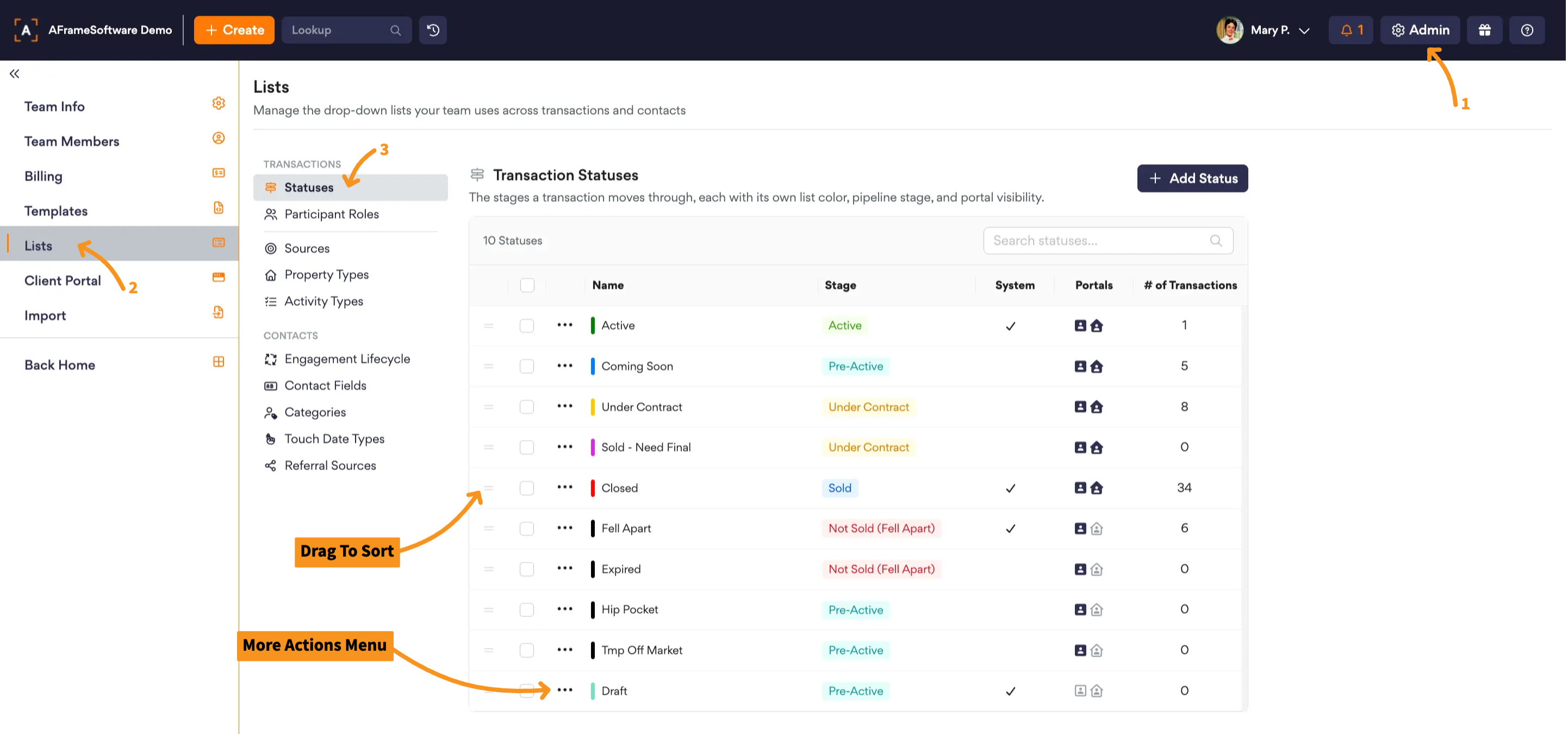
Open in AFrame: Admin → Lists → Transaction Statuses
Participant Roles
When it comes to real estate transactions, there are several participants involved in the process. The main players include buyers, sellers, real estate agents, closers, and lenders. Each participant has a unique role and set of responsibilities, but at any point, someone may need to reach another party. Customizing your participant roles list will help you label each participant added to each transaction & will assign a unique merge field code to each role to assist in auto-populating correlating data into the email templates selected for that transaction. Additionally, you can control the visibility of the transaction's participant roles in both the agent and buyer/seller portals.
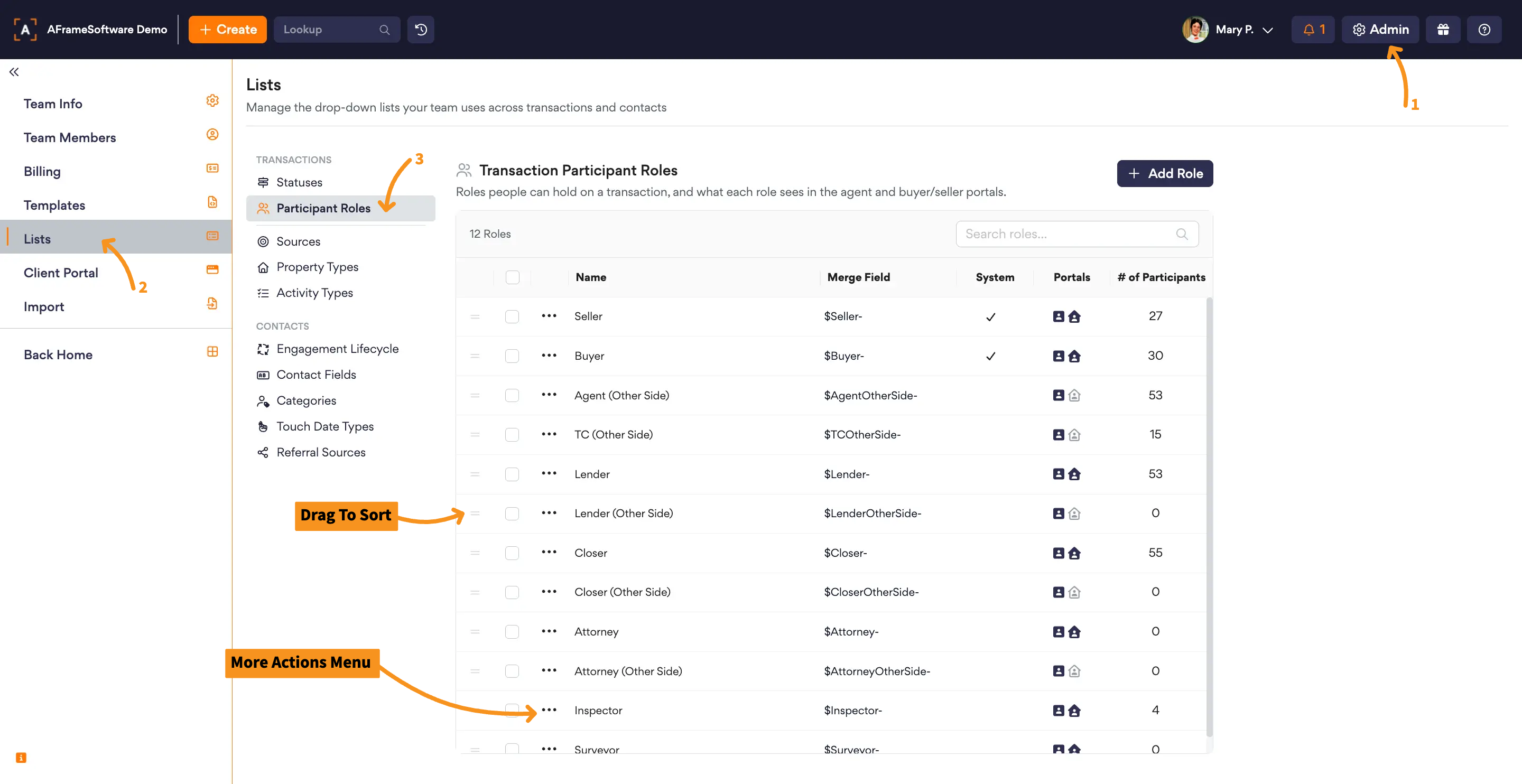
Open in AFrame: Admin → Lists → Transaction Participant Roles
Transaction Sources
You can customize the default dropdown selection list for the transaction source to better suit your specific needs and preferences. At any point, you can search for a list of transactions or clients by the source selection made in the transactions. Once the transactions are closed, the statistics per source option will be updated for the summary breakdowns.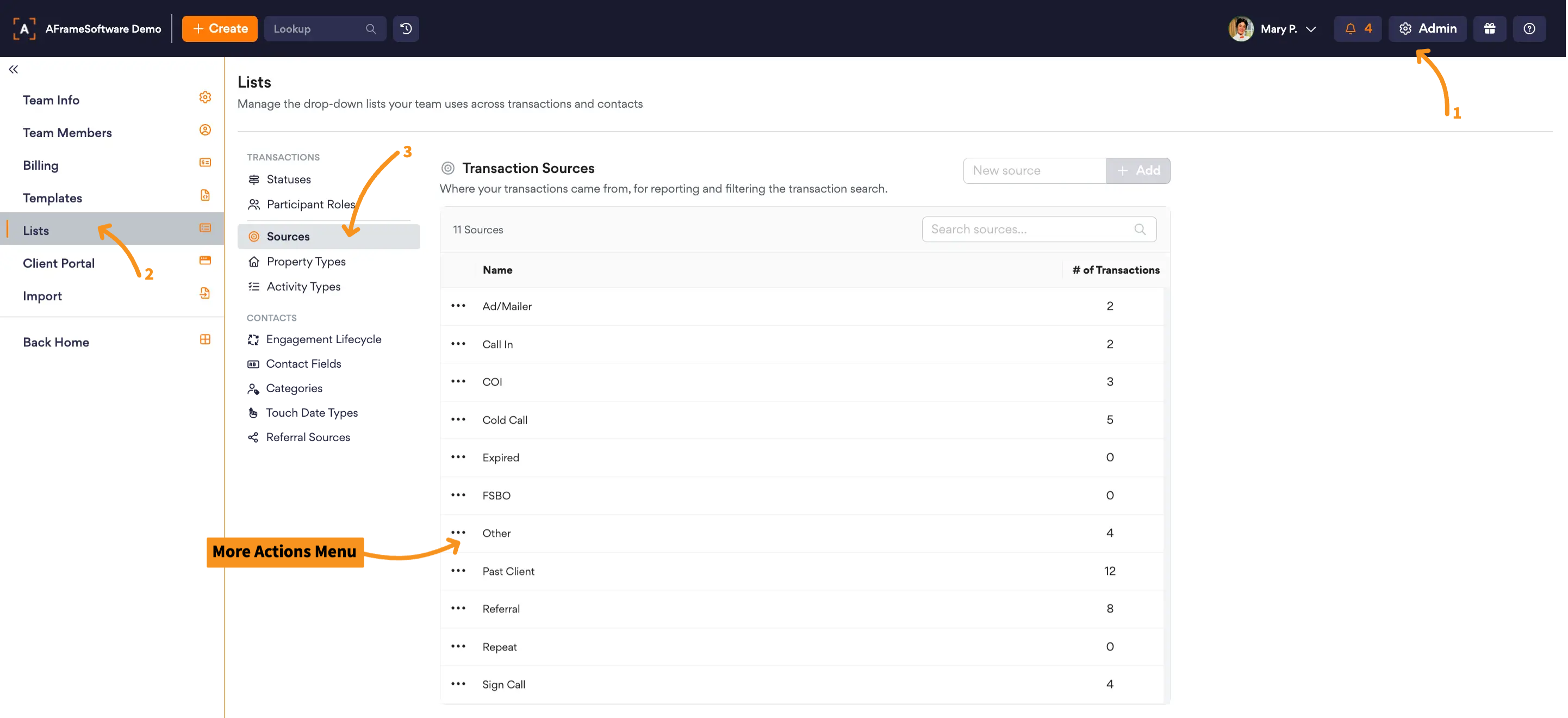
Open in AFrame: Admin → Lists → Transaction Sources
Property Types
While creating your transactions within AFrame, you must select a property type from a dropdown list. You can customize this list to better sort your business needs. We have provided a default list of common property types within your account from the start. You will also see a breakdown of the sold transactions by property type in the sold summary report and in the analytics tab of the agent portals.
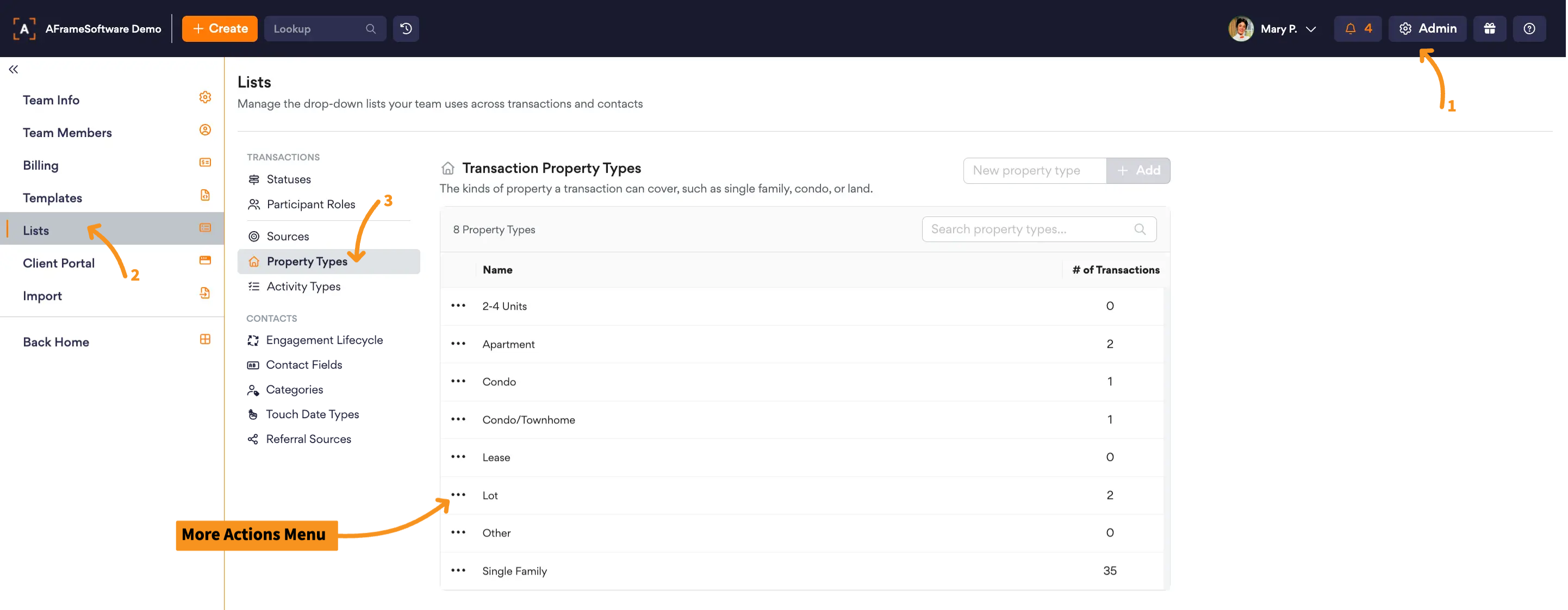
Open in AFrame: Admin → Lists → Transaction Property Types
Activity Types
Throughout your transaction, you have the option to add different activity notes under the activities tab. We do provide you with default options, but you can customize the list by adding, deleting, renaming, or merging options. You can also choose the visibility of the whole activities tab or individual activities within the agent & buyer/seller portals, giving you control over who sees what.
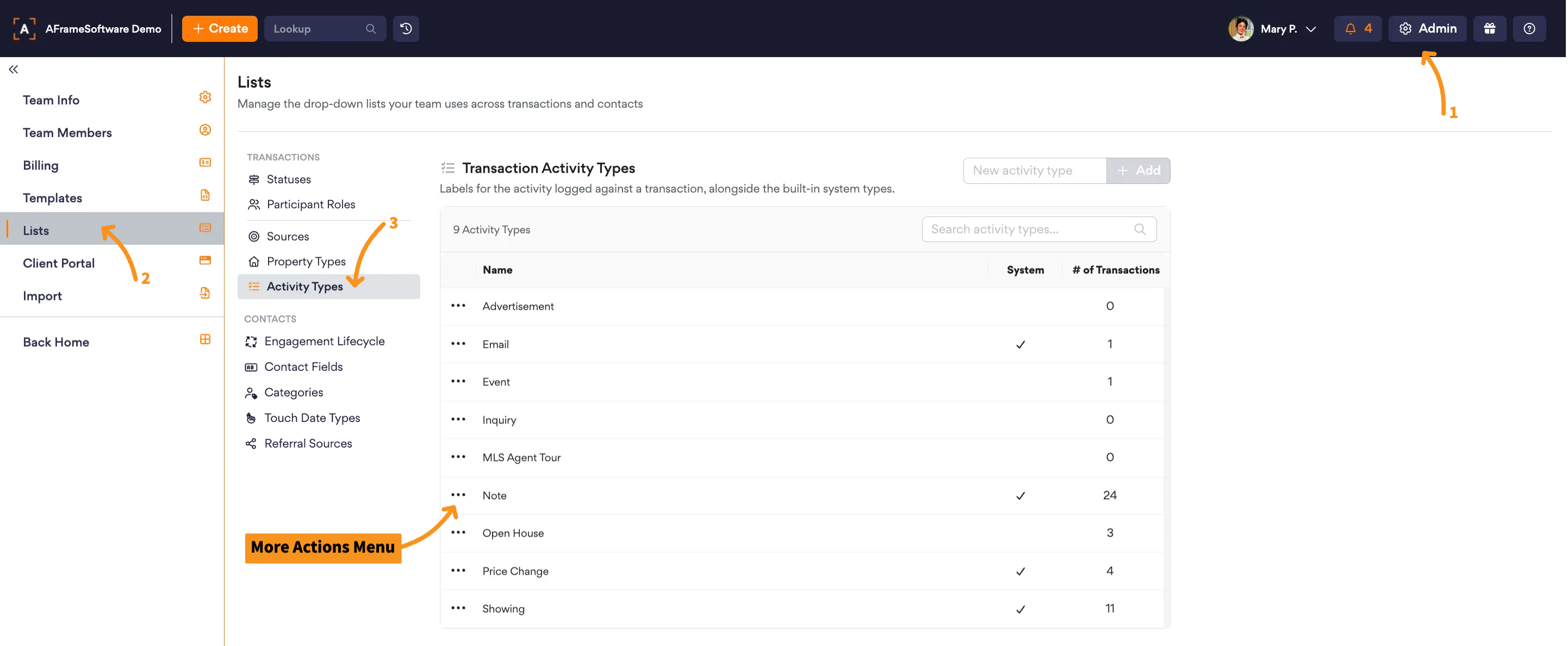
Open in AFrame: Admin → Lists → Transaction Activity Types
Contact Lists
Engagement Lifecycle
Use custom phases to track where each Contact is within your engagement lifecycle. Create your own phases using the preset stages: Developing, Engaging, Active, and Inactive. You can also use the Opportunities shared view preset on the Contact Search page to view Contacts across all Engagement Stages, sorted by Priority and then Status, making it easier to identify and prioritize opportunities.
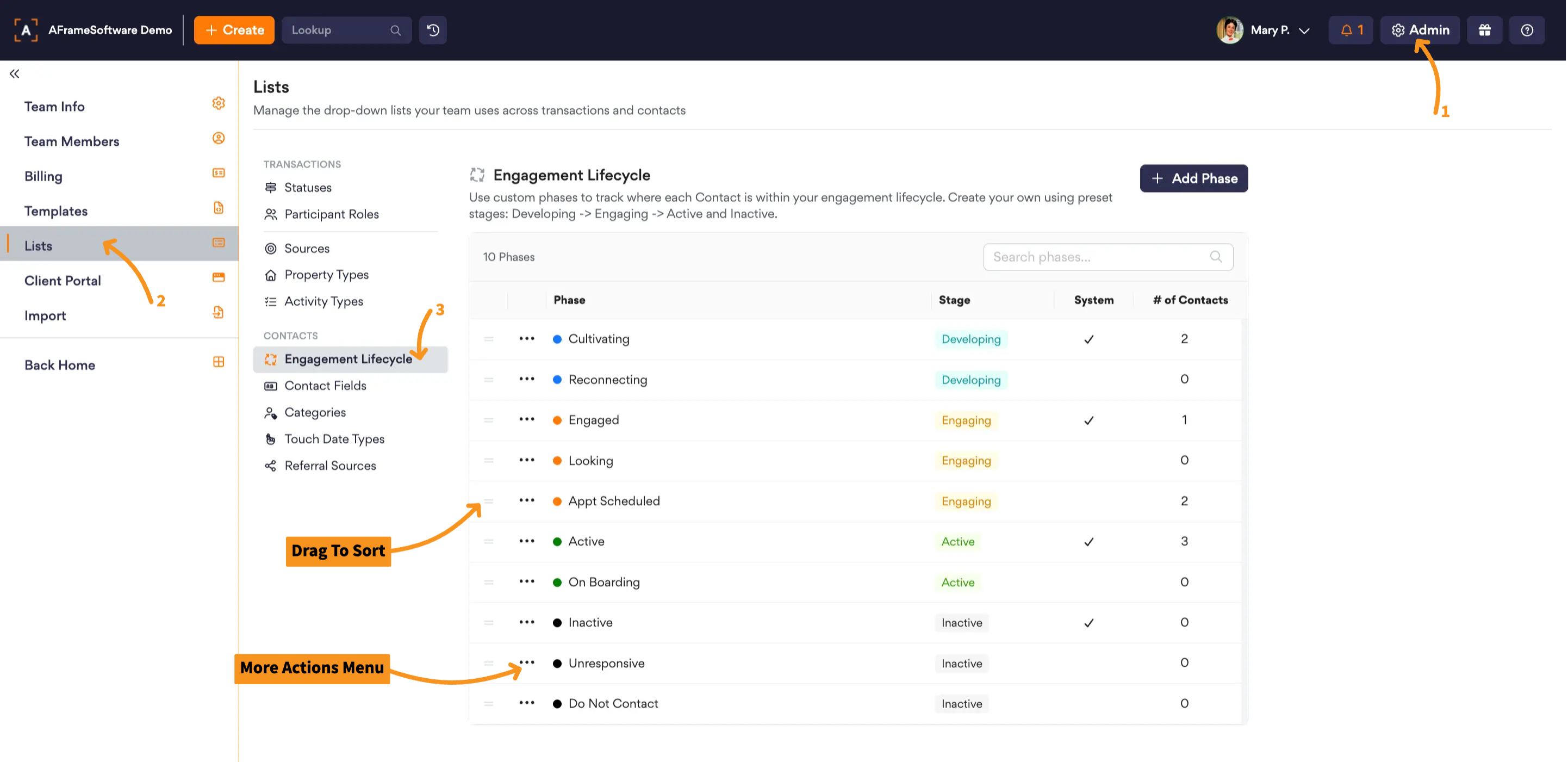
Open in AFrame: Admin → Lists → Contact Engagement Lifecycle
Contact Fields
Custom fields for tracking additional Contact information that may be specific to your workflow or needs. Fields are organized into groups to keep related information together and make it easier to find. Within the Contact detail page, groups can be manually rearranged to your preferred positions, allowing you to organize the layout based on the information you use most often.
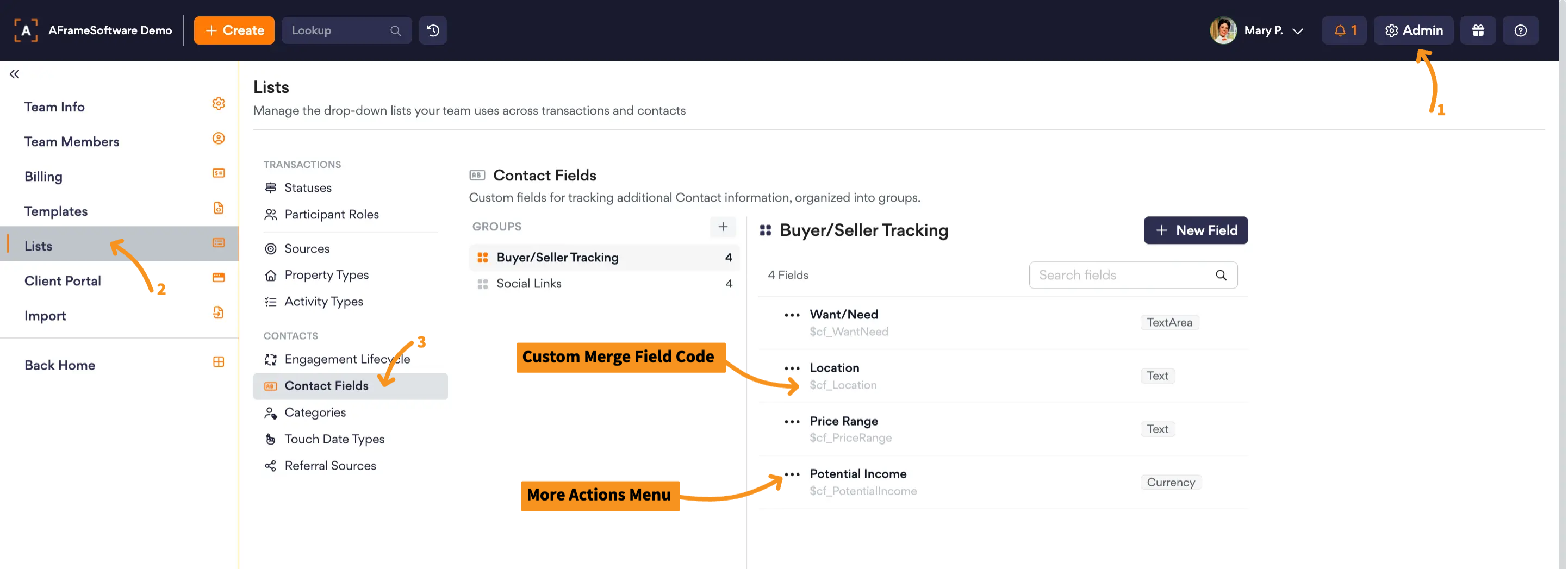
Open in AFrame: Admin → Lists → Contact Fields
Contact Categories
Having a reliable way to search your contacts is key, and contact categories make that easy. Categories let you organize contacts from broad to specific, helping you keep a growing database clean and searchable. A clear category system also makes it simple to quickly find and filter lists of contacts when you need them.
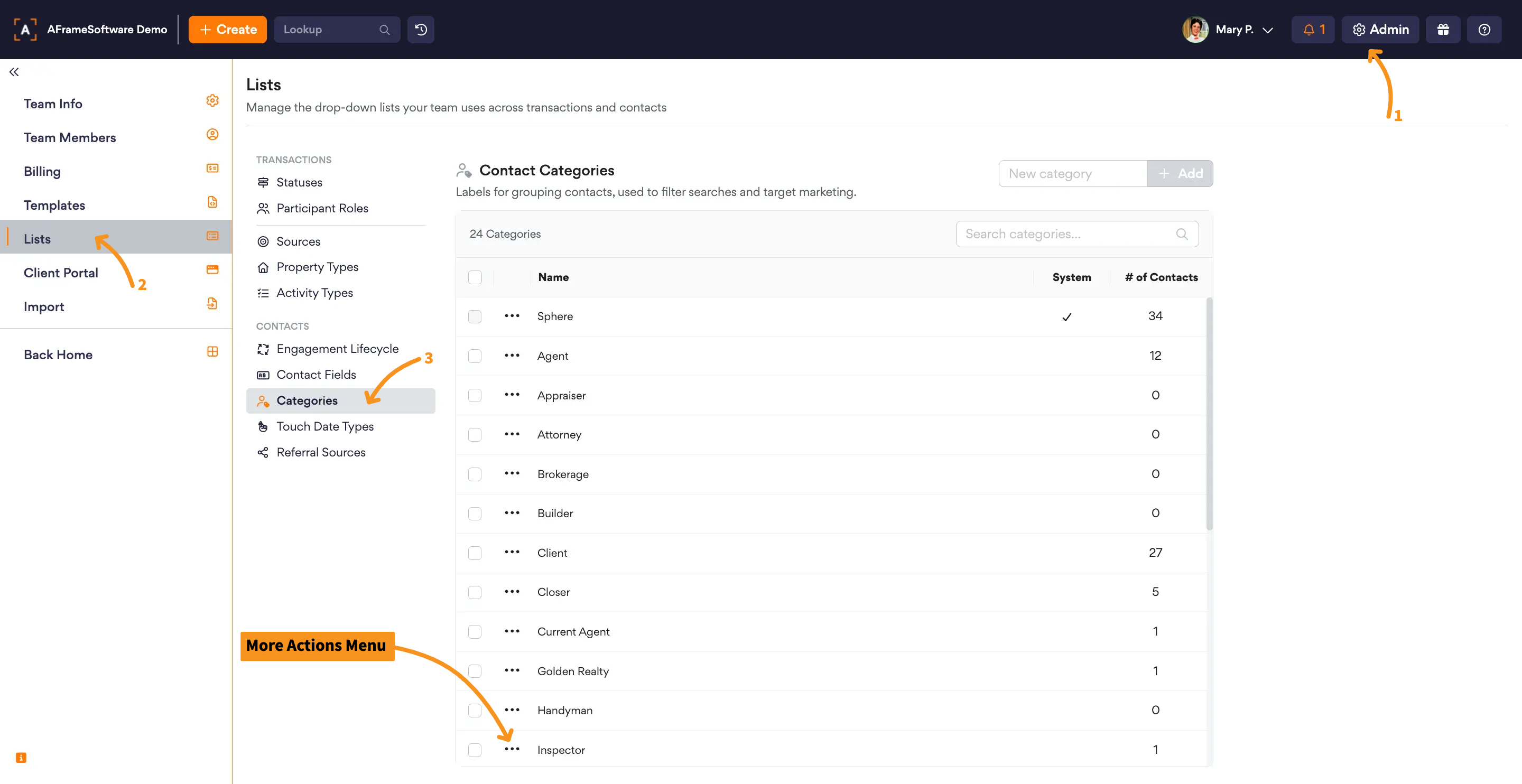
Open in AFrame: Admin → Lists → Contact Categories
Touch Date Types
Touch dates act as reminders to check in with clients and stay connected. You can customize them for important moments like purchase anniversaries, birthdays, and more, helping you stay organized, provide thoughtful follow-ups, and build long-term relationships that lead to repeat business and referrals.
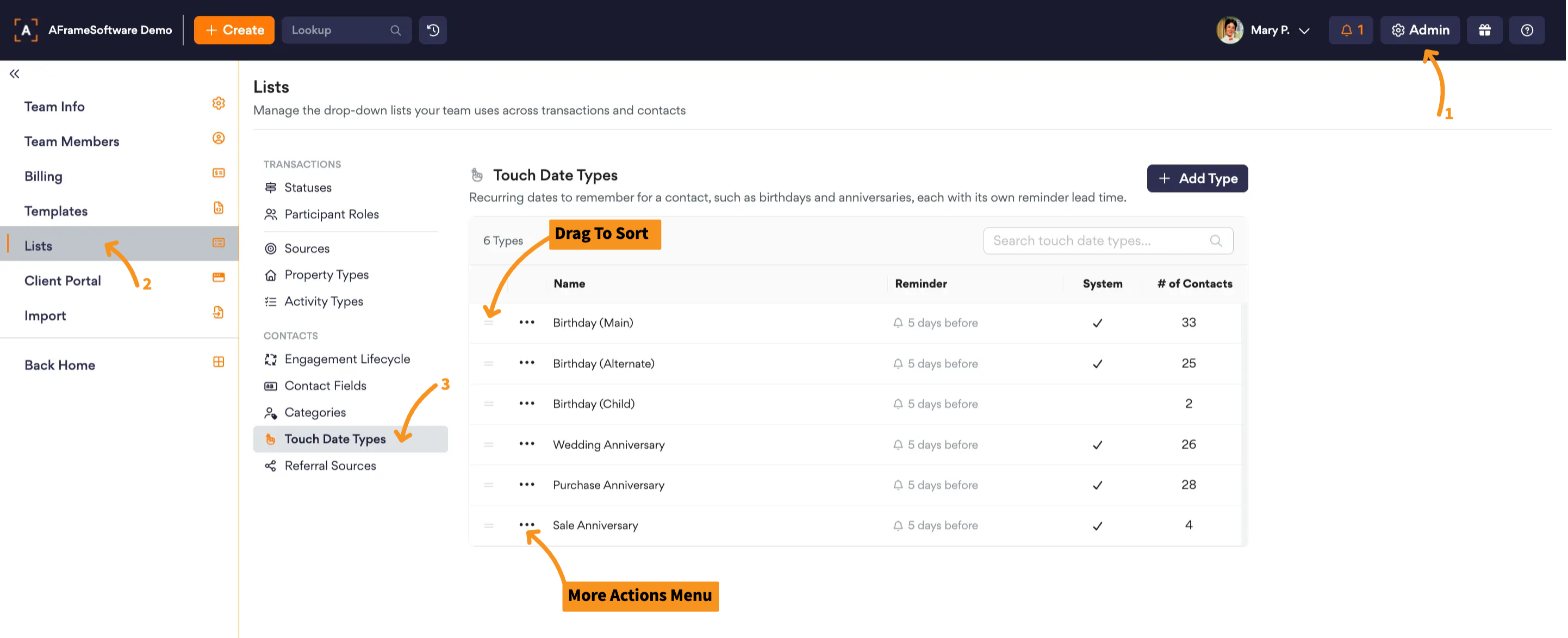
Open in AFrame: Admin → Lists → Contact Touch Date Types
Referral Sources
Referral source tracking helps you understand where your contacts and business are coming from so you can focus on the most effective referral channels and improve your overall strategy.
Referral sources can be assigned to each contact under the Other Details tab, much like you can assign a referral contact. You can also review all referrals (contacts and sources) in the Referral Summary tab on the Analytics page.
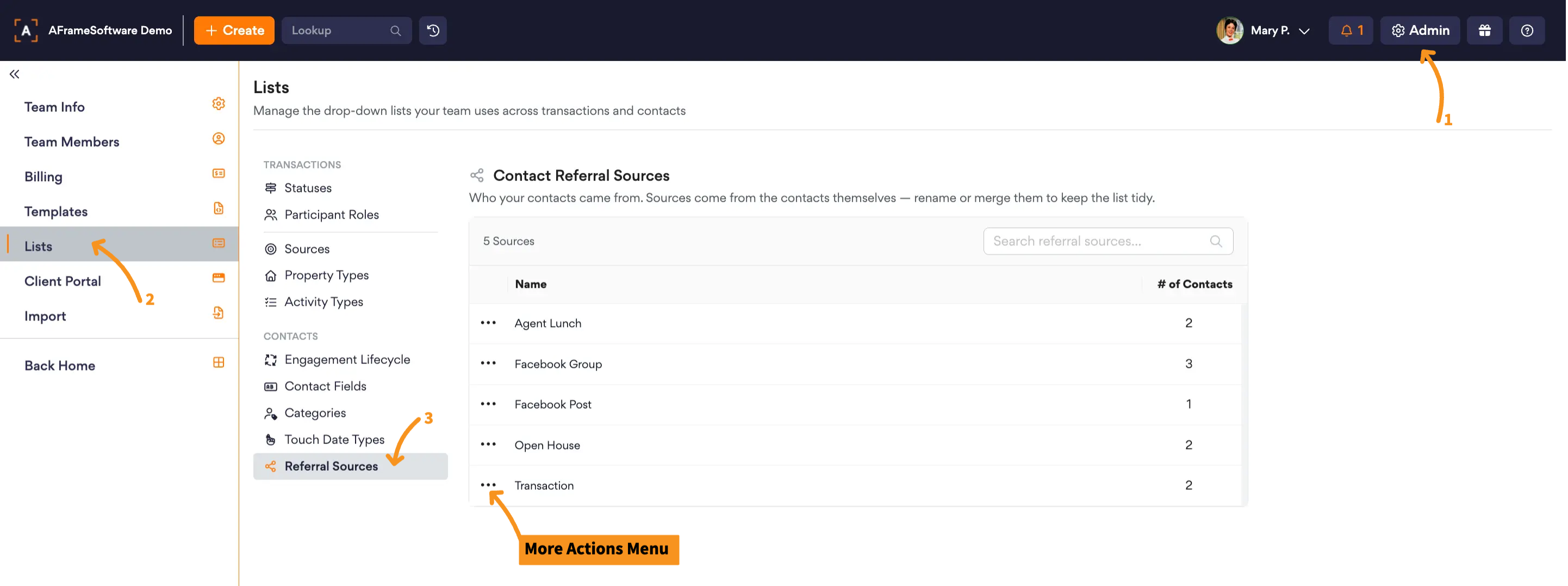
Open in AFrame: Admin → Lists → Contact Referral Sources
Related Article: Analytics