
AFrame allows you to send batch marketing emails to your contacts using your own email address with a limit of 150 emails a day or with a paid SendGrid account. If you do not already have SendGrid set up, instructions on how to do so are within our SendGrid :: Batch Email Setup article.
TABLE OF CONTENTS
Sending Batch Emails
- Use the Contact Search Page to search for & select the contacts that should receive your email. Once you have your complete list, use the Connect → Send Batch Emails option to prepare your email next.
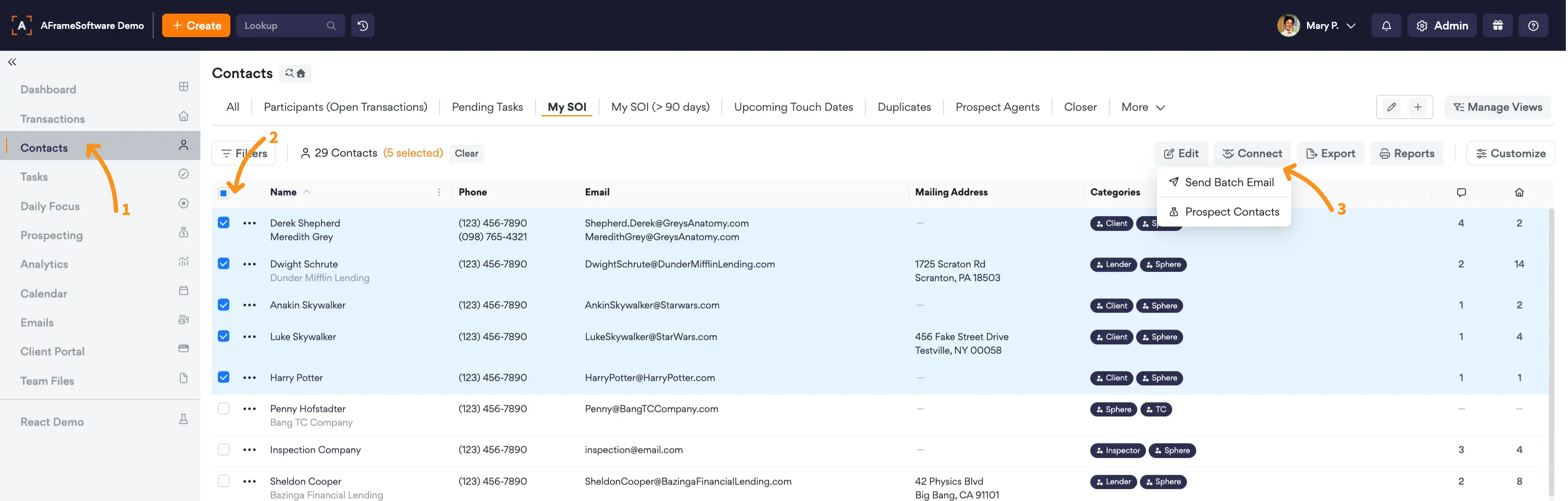
Open in AFrame: Contact Search Page
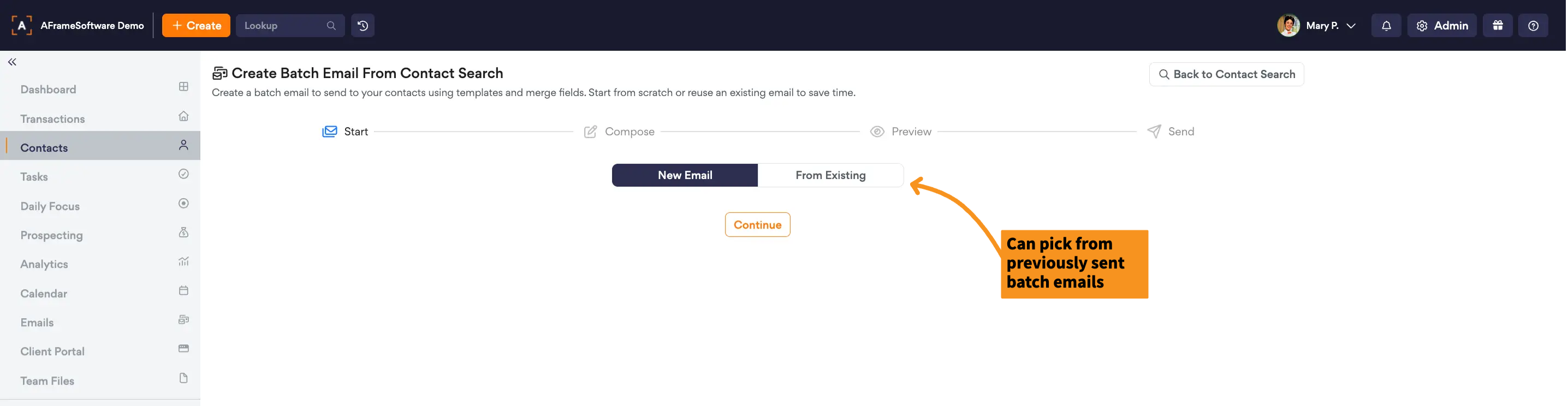
- Pick if you want to start a new email or from a previously sent batch email.
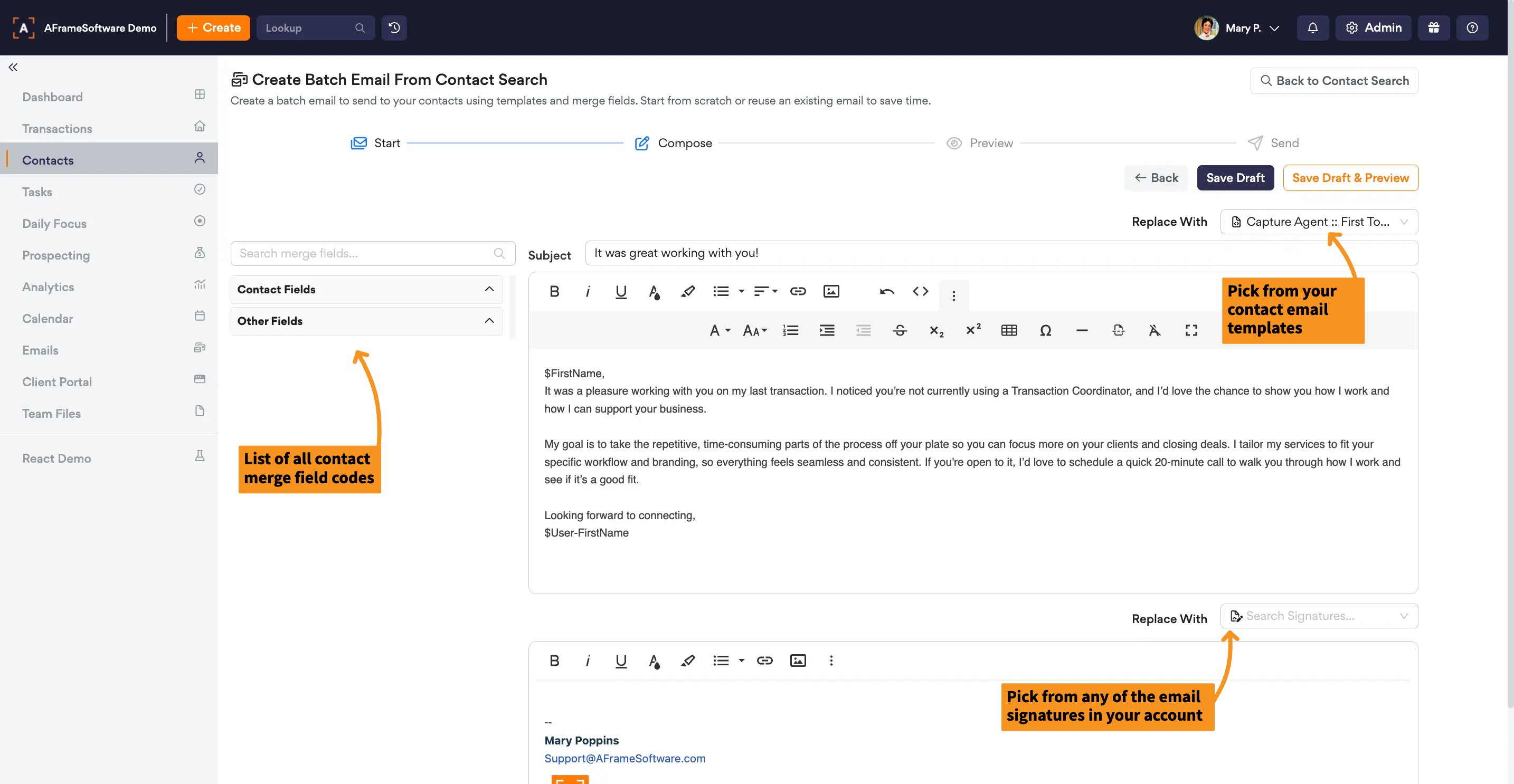
- Prepare your email using the several options available, then click Save Draft & Preview.
- This screen is used to preview your merged emails before sending, then click Review and Send.
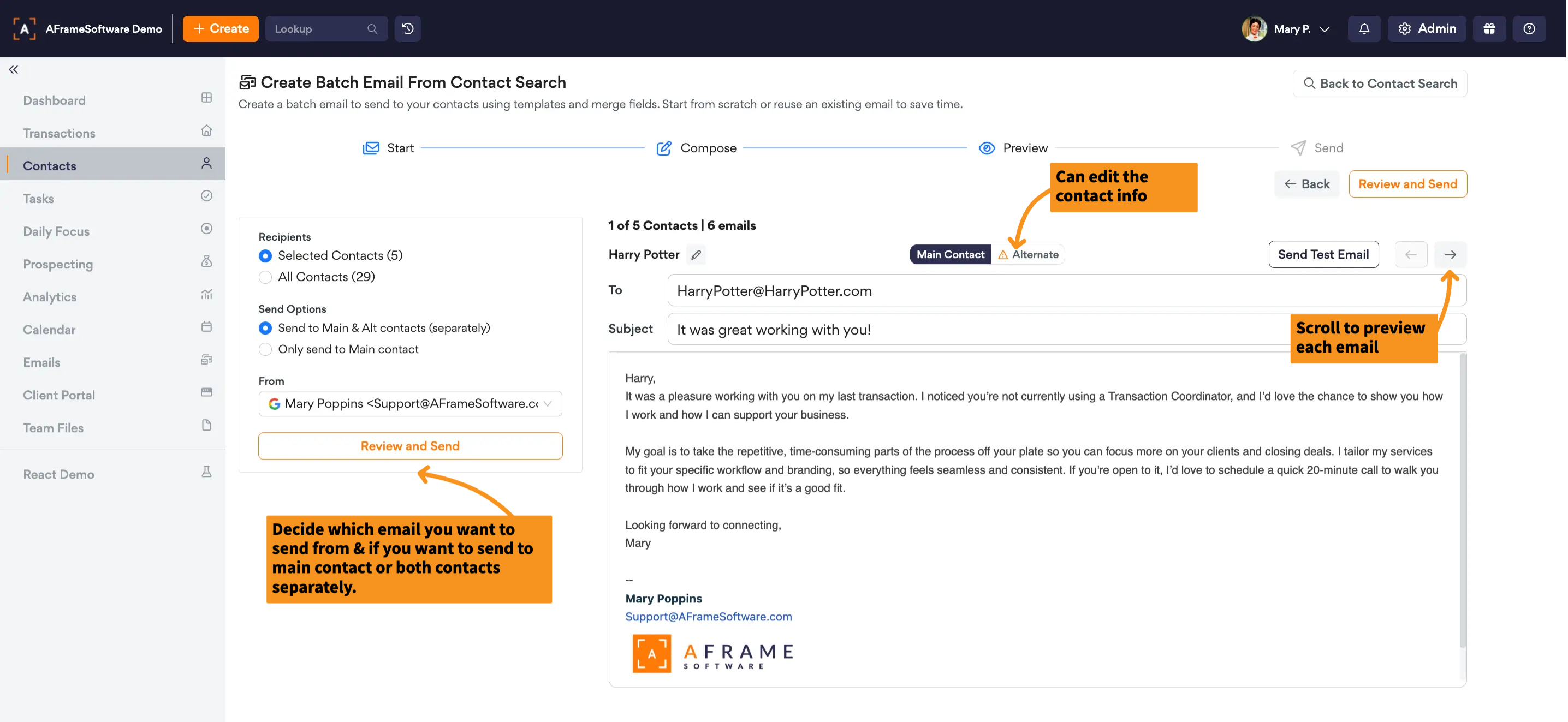
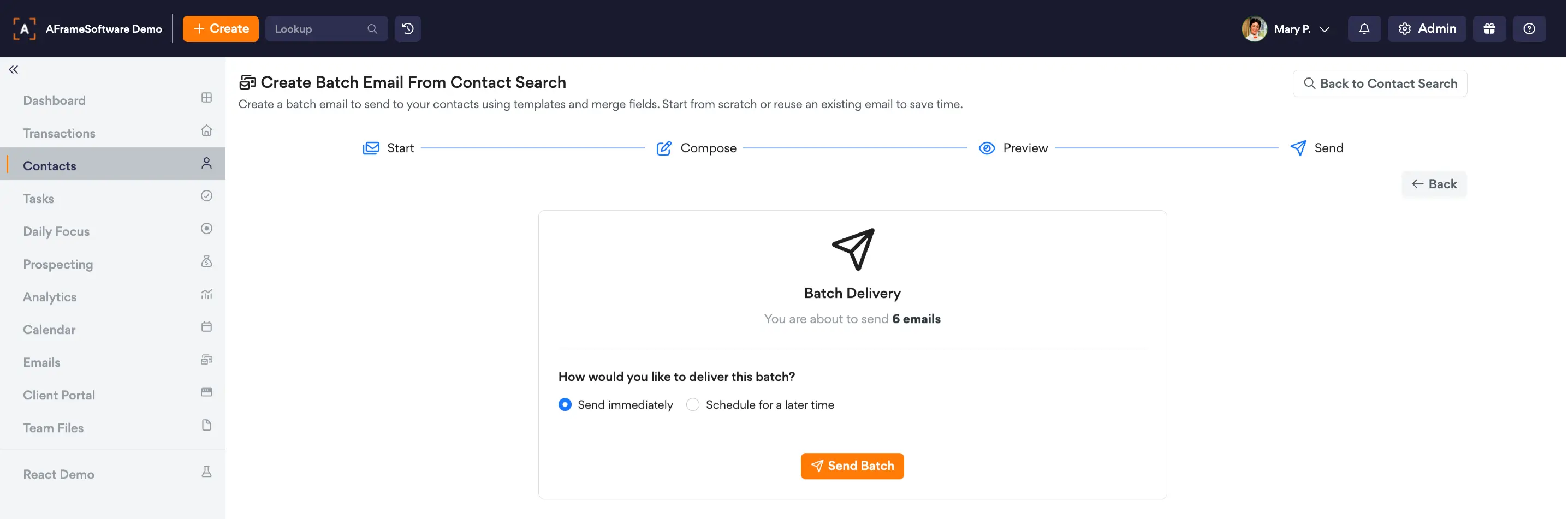
- Now you decide if you want to send now or schedule to send.
View Email Batches
Using the Email Queue Page, users can review all batch emails in one place, including those that are sent, drafted, or scheduled. It also provides visibility into results, showing how many emails were successfully sent, failed, or opted out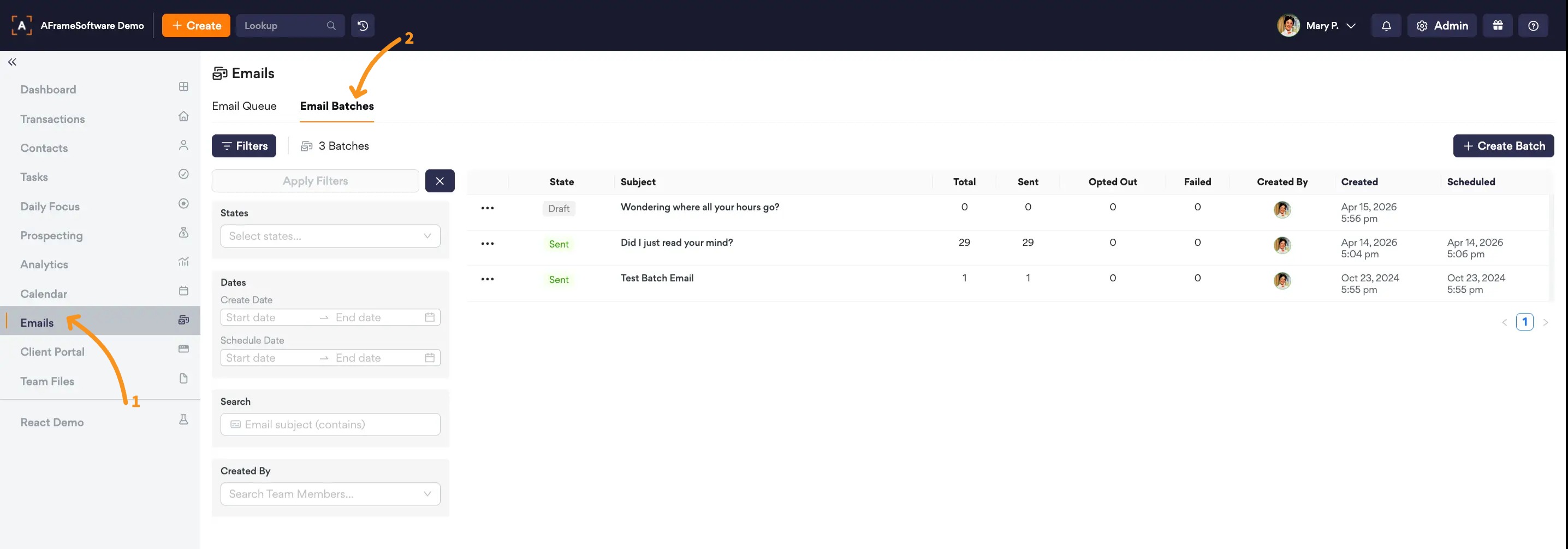
Open in AFrame: Email Queue → Email Batches